


Free task template
Capture every task, assign owners, set due dates, and track progress in a shared task template. Build your task list in Asana, then customize it for daily priorities, weekly planning, project tasks, team meetings, or personal work.
Sign up to create your own template.
Free task template
Capture every task, assign owners, set due dates, and track progress in a shared task template. Build your task list in Asana, then customize it for daily priorities, weekly planning, project tasks, team meetings, or personal work.
Create your templateSign up to create your own template.
INTEGRATED FEATURES
Recommended apps



![[Old Product UI] Organized GTD method in My Tasks project in Asana with priority, date, and project-level information (Lists)](https://assets.asana.biz/transform/beb40d88-362d-49be-a6ba-57e6272fc4b7/inline-productivity-getting-things-done-gtd-product-ui-my-tasks-prioritized-en-2x?io=transform:fill,width:2560&format=webp)
Summary
If you’ve got work requests coming from all directions—meetings, emails, Slack threads, and last-minute conversations—a basic to-do list isn’t always that useful. A task template, on the other hand, helps you organize incoming requests by priority, owner, deadline, and status before your day becomes consumed by disorderly tasks.
Perhaps the greatest benefit of Asana’s task templates is that they adapt to your team and workflow. Team members can update their tasks and managers can see what’s changed. According to IDC’s 2023 Business Value of Asana white paper, Asana users reduced the time spent on administrative tasks, email, and searching for information from 21.4 hours per week to 13.9 hours per week.
What is a task template?
A task template is a ready-made project for capturing, assigning, and tracking work. A simple version might include task names, owners, due dates, and status fields. While a more detailed task management template might include priority levels, dependencies, sections, approvals, notes, and links to supporting documentation.
Use a task template when you repeat a similar workflow multiple times:
Marketing teams can use one for campaign tasks.
Operations teams can use one for recurring work requests.
Project managers can use one to assign project tasks, review blockers, and confirm deadlines before work falls behind.
In Asana, your task list becomes a shared project for your whole team rather than a static file.
How to use this task template
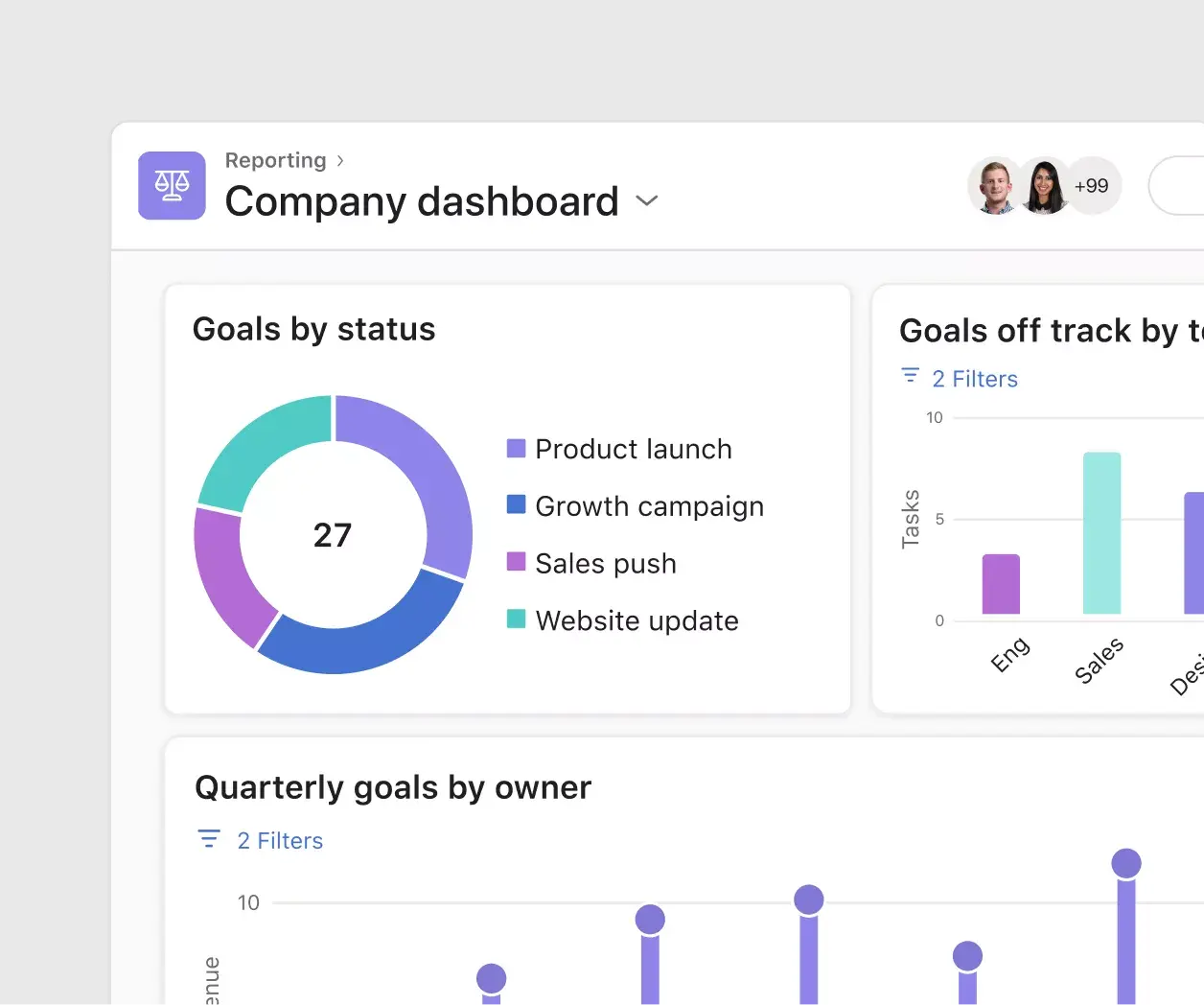
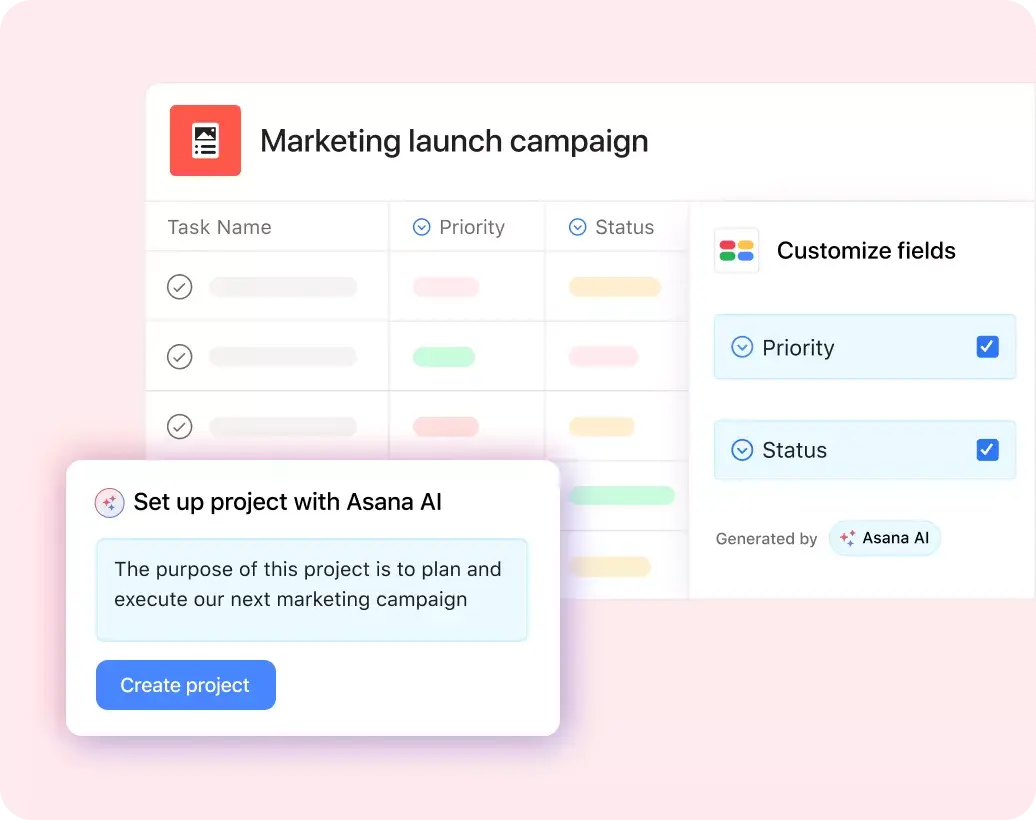
To best use task templates, begin with the work your team needs to manage, then shape the template around the way people will update it day to day. In Asana, you can build a task-tracking template yourself or ask Asana AI to create one from a short prompt that includes sections, tasks, subtasks, and fields. Review the AI-generated structure, remove anything that doesn’t apply, and add the project details your team needs.
1. Create the template
Open a new Asana project and start with a task template format you like. Add a short description of the work you need to manage, such as “weekly marketing tasks,” “new client onboarding,” or “product launch follow-ups.”
Use Asana AI to turn that description into a first draft of tasks, subtasks, and sections. For example, a project manager could ask Asana AI to draft tasks for kickoff, production, review, approval, and launch. A team lead could ask for an employee task list template to assign individual responsibilities to staff members or new hires.
Review the AI draft before your team uses it. Remove tasks that don’t apply, add project-specific details, and rename sections so they match the workflow your team already knows.
2. Customize template with your workflow
Create sections that show where each task belongs. A simple weekly task list template might use to-do, in progress, blocked, review, and done. A daily task list template might use today, later this week, waiting on someone, and complete.
Choose sections that make decisions easier:
If your team often loses track of approvals, add a review section.
If work is occasionally delayed because someone is waiting on files or answers, add a blocked section.
If managers need to review tasks by function, add sections for marketing, sales, operations, or customer service.
3. Add tasks with the right context
Write each task as a specific action someone can complete. “Draft onboarding email” works better than “email.” “Review Q3 budget numbers” works better than “budget.” Add context the assignee needs before they start: a short description, relevant documentation, links to briefs or docs, and any notes from the original work request.
Use subtasks when one task includes several steps or handoffs. For example, “Publish blog post” might include subtasks for final edit, SEO review, image upload, CMS build, and publish check.
4. Assign owners, milestones, and due dates
Give each task one owner, as shared ownership can be confusing. If two people need to contribute, assign the main task to the person responsible for completion and create subtasks for the supporting work.
Add deadlines based on when you want the work to be completed, not when someone should start thinking about it. For review-heavy work, create separate tasks for the review step and the final approval. That gives reviewers their own deadline and helps the team identify any bottlenecks.
Use priority fields only when your team agrees on what each priority means. Otherwise, everything can become “high priority,” which makes the field less useful.
5. Add fields that make sorting easier
Use custom fields for information your team needs to filter or report on. Common fields include priority, status, task type, department, effort, approval stage, and blocker.
A project task template might need fields for phase, launch date, stakeholder, and dependency risk.
A team task list template could use fields for requester, team, due date, and task category.
A personal task manager template may only need priority and due date.
Don’t add fields just because they might be useful later. Extra fields will create extra admin. Start with the few fields your team will realistically use.
6. Choose the best project view
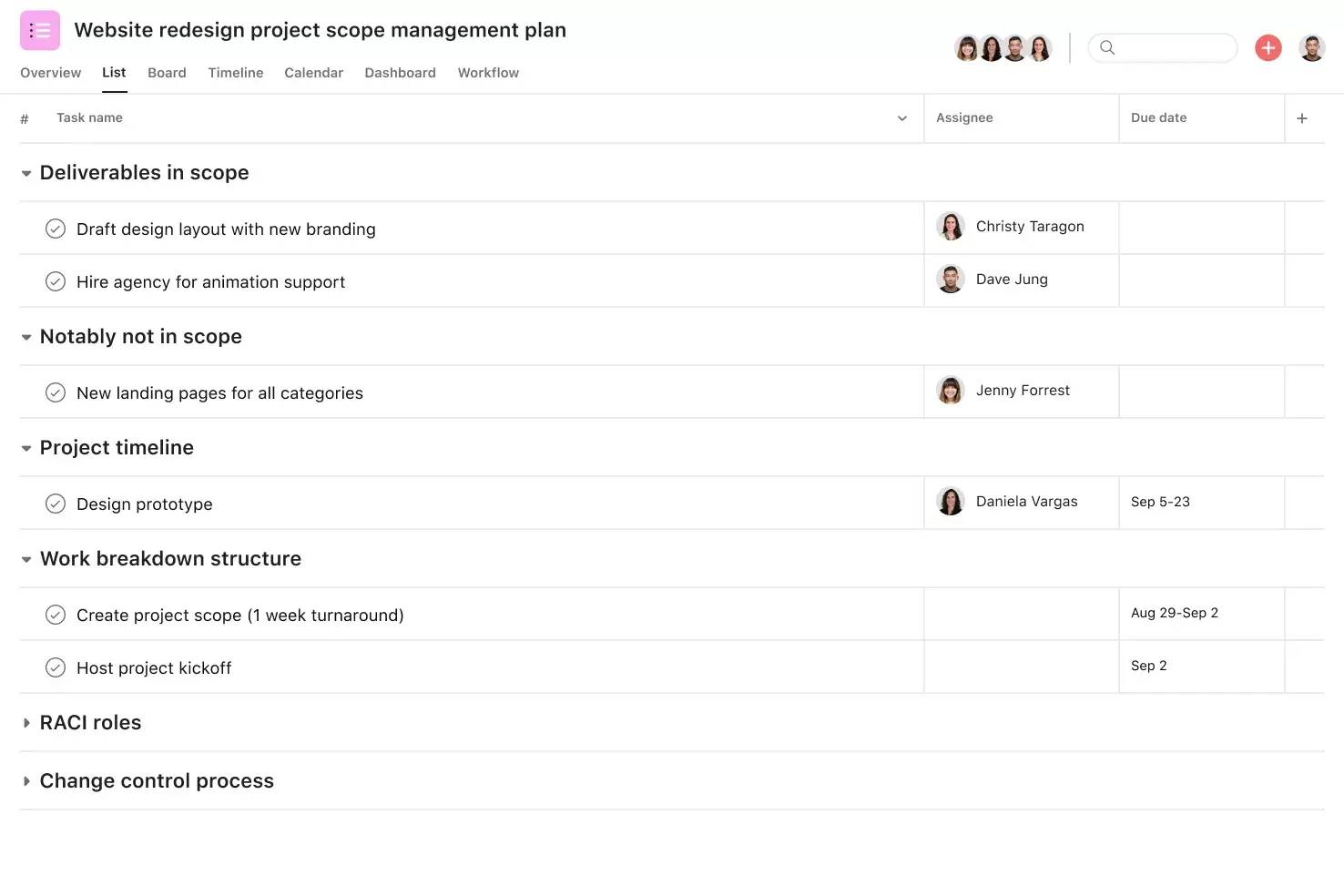
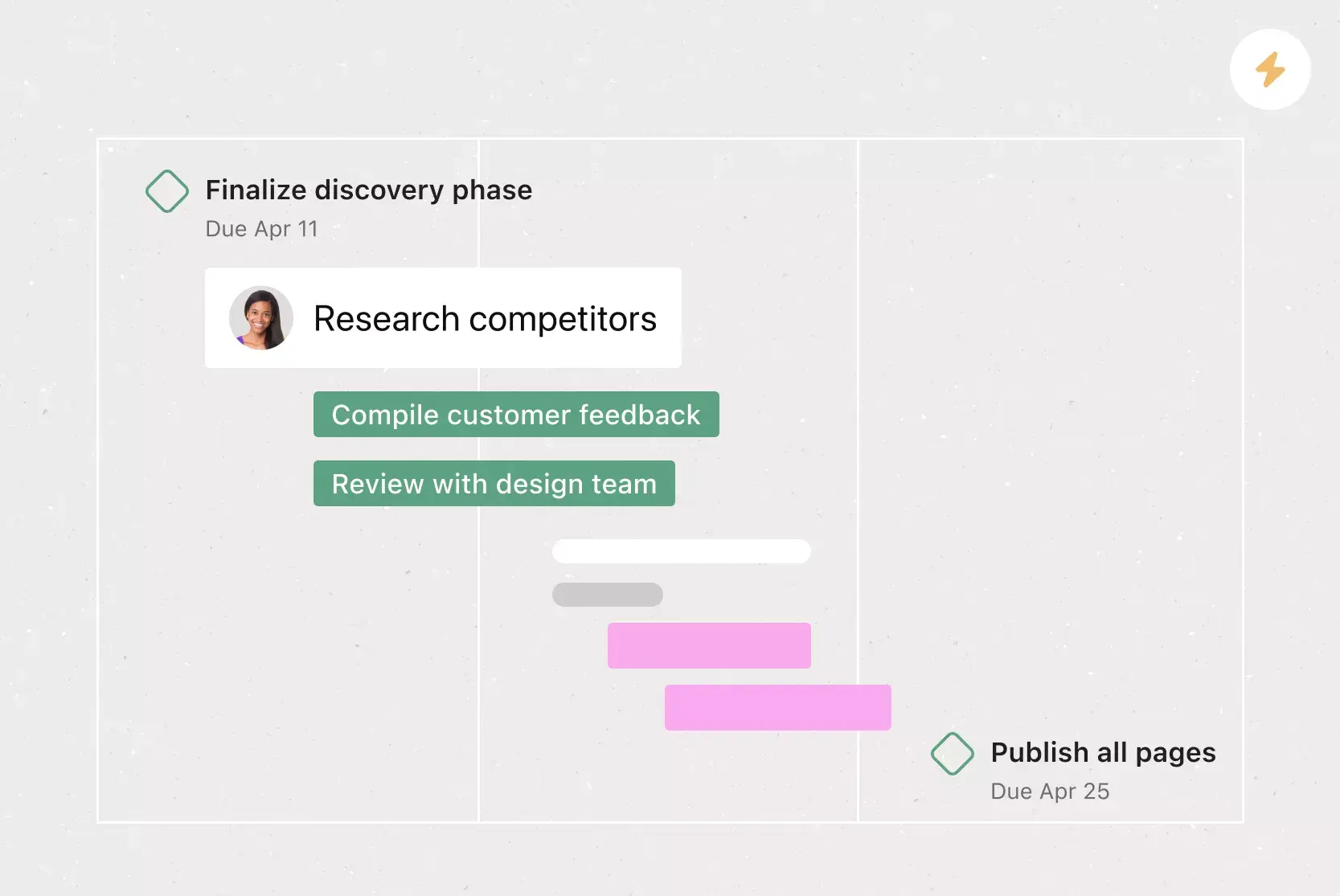
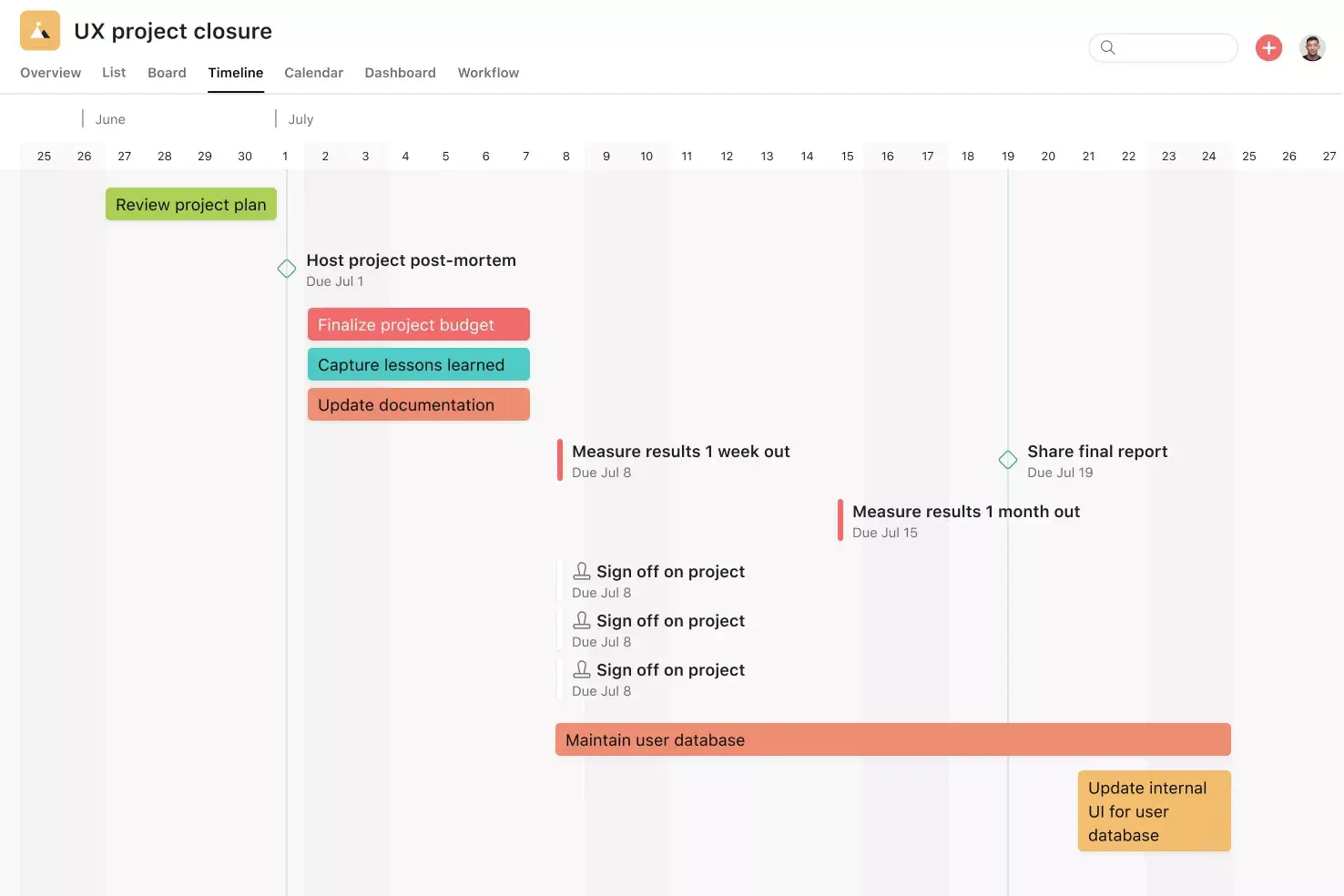
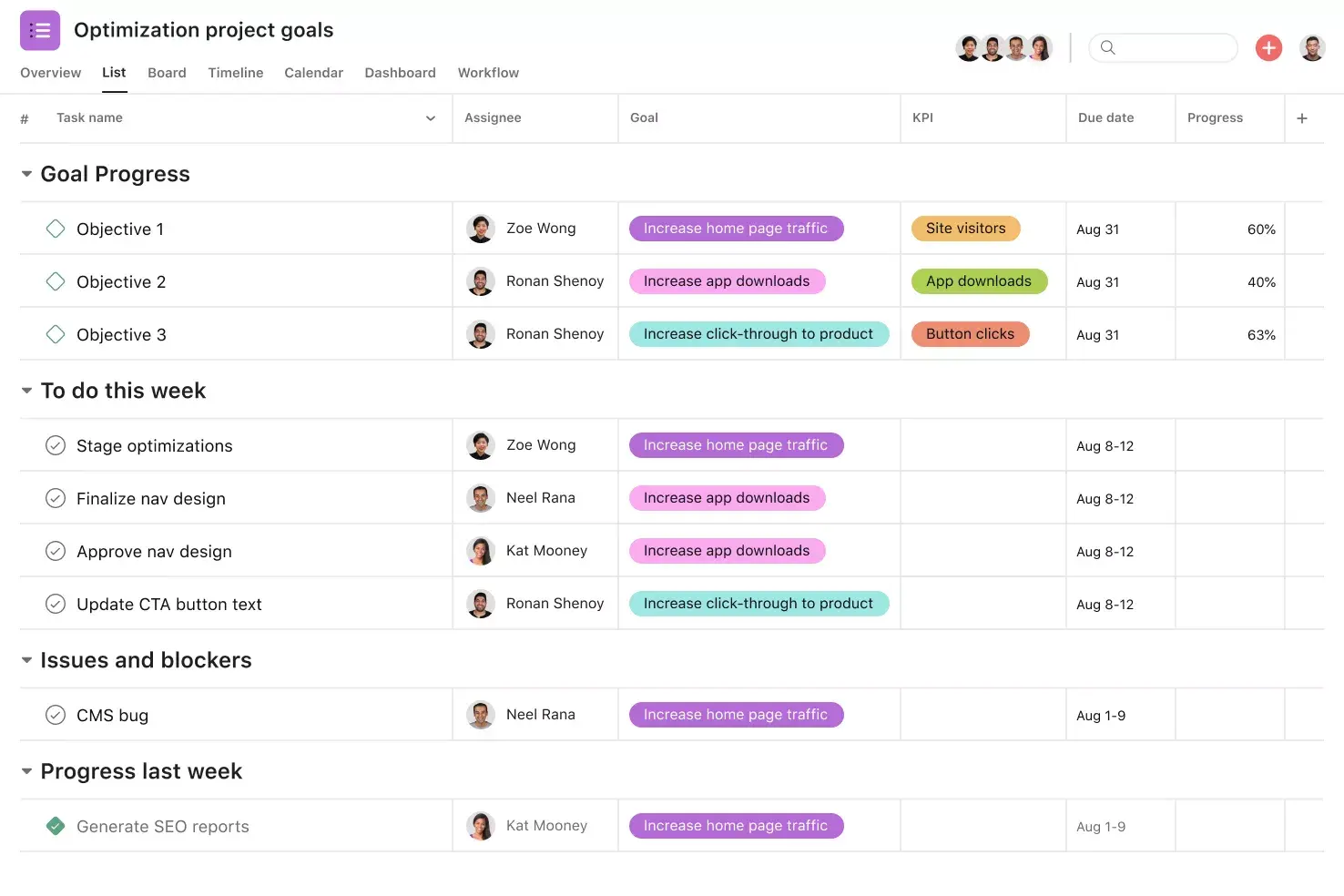
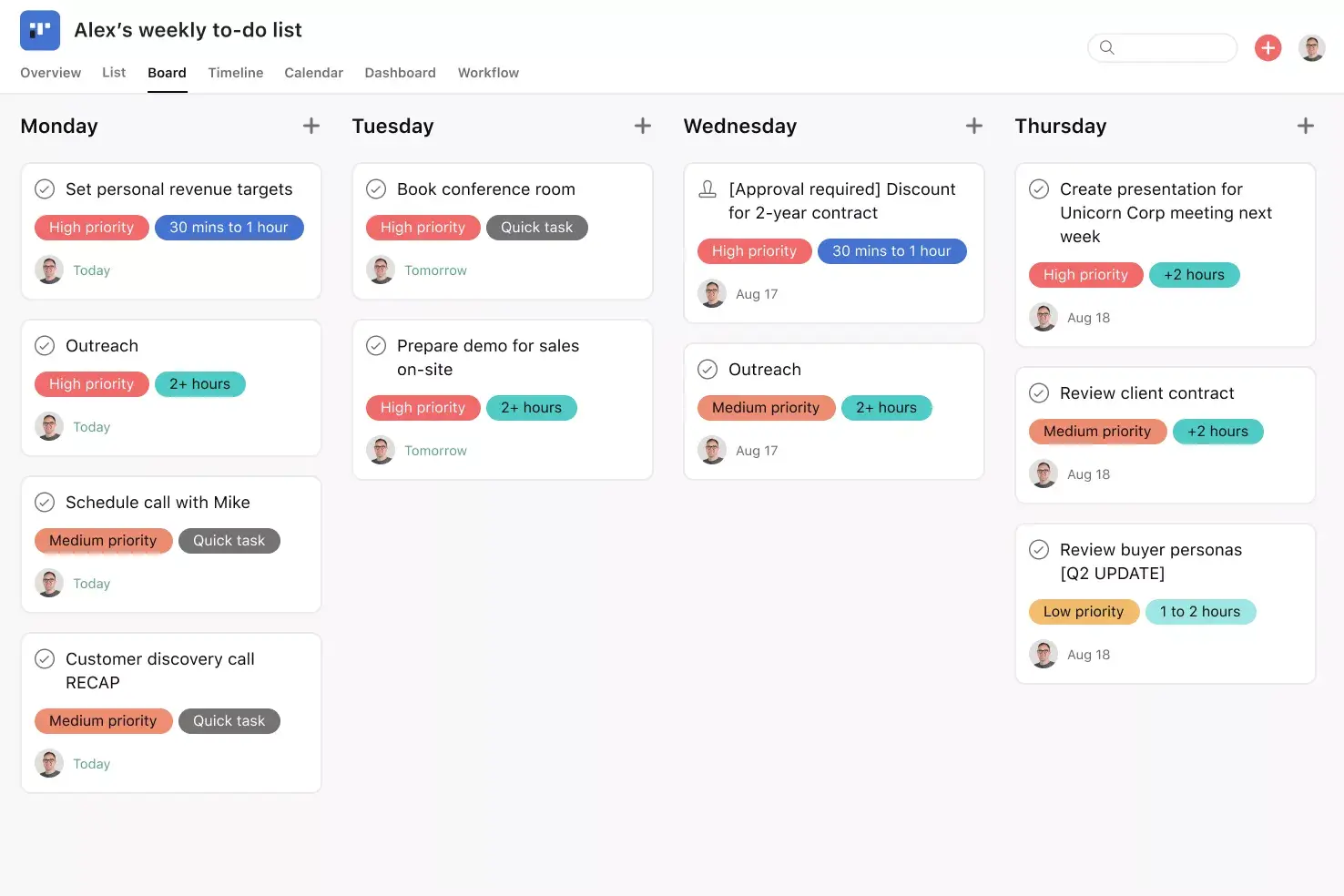
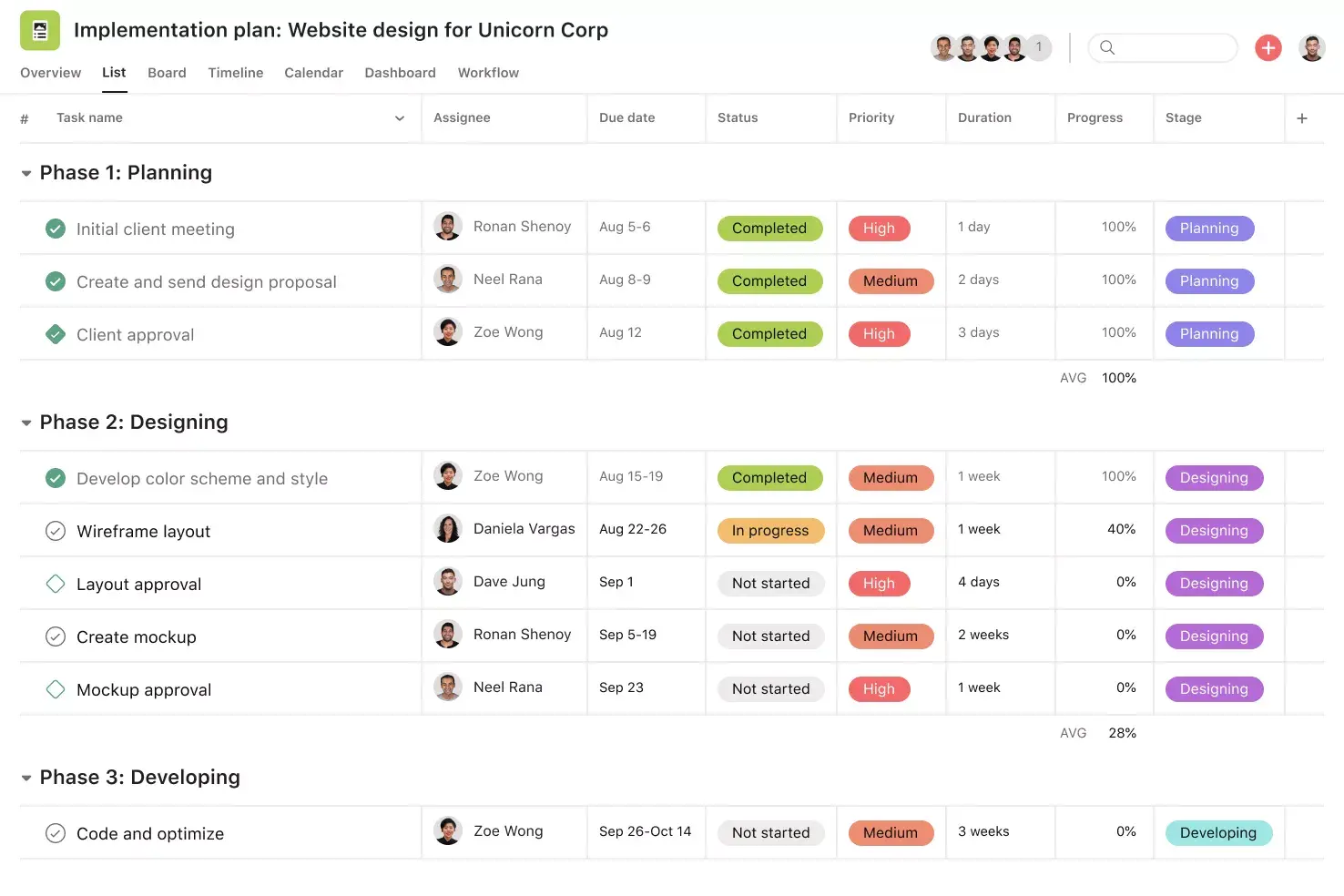
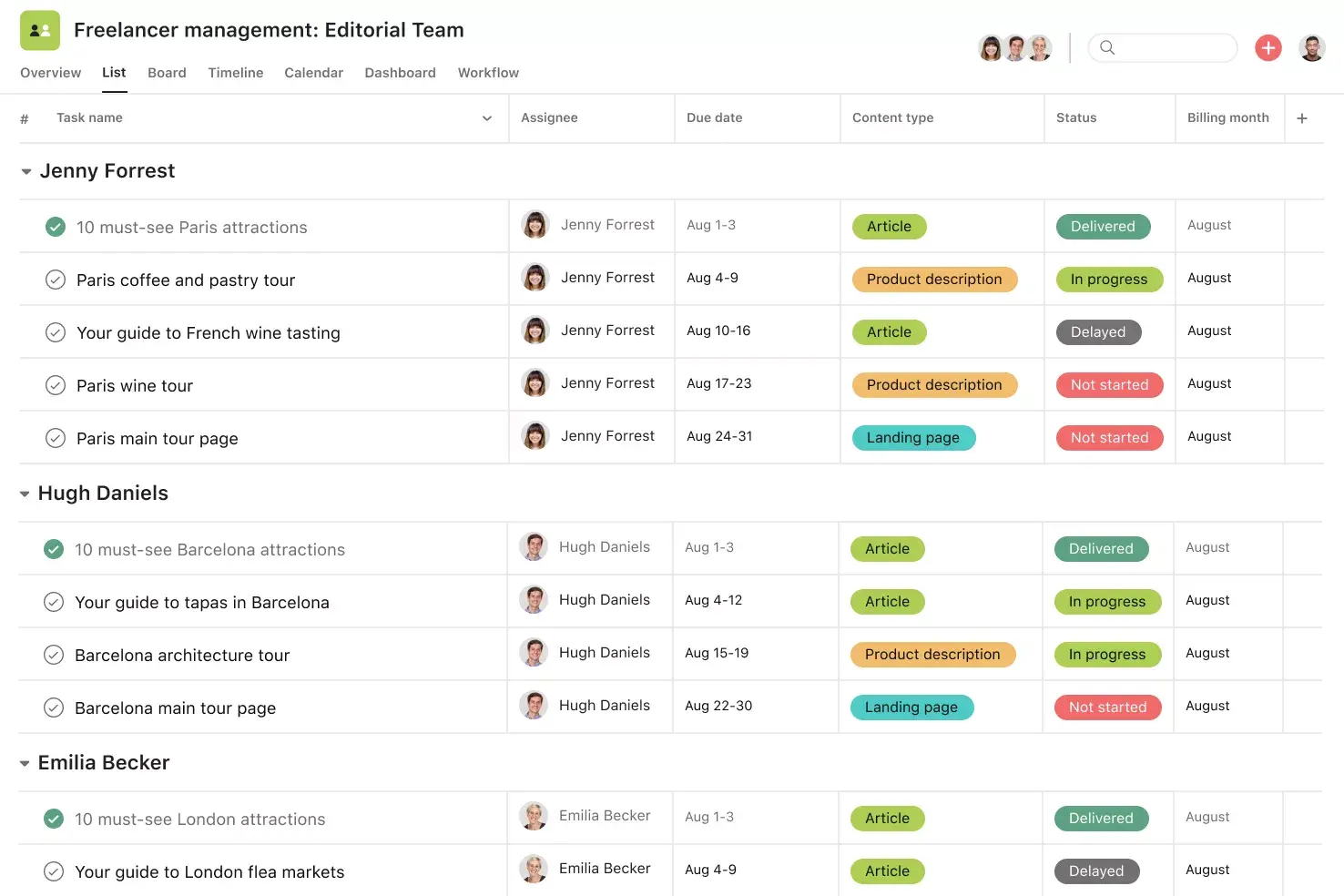
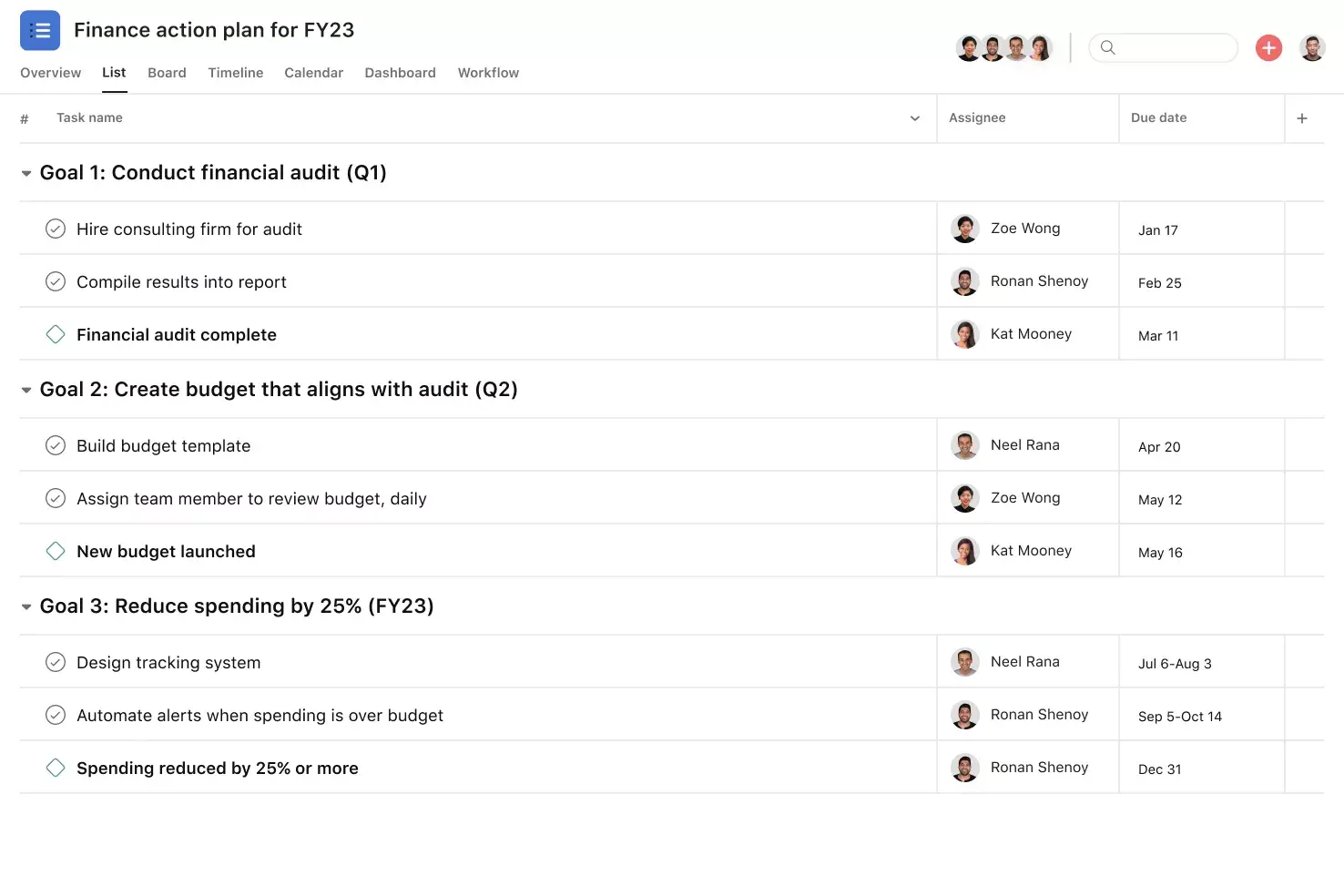
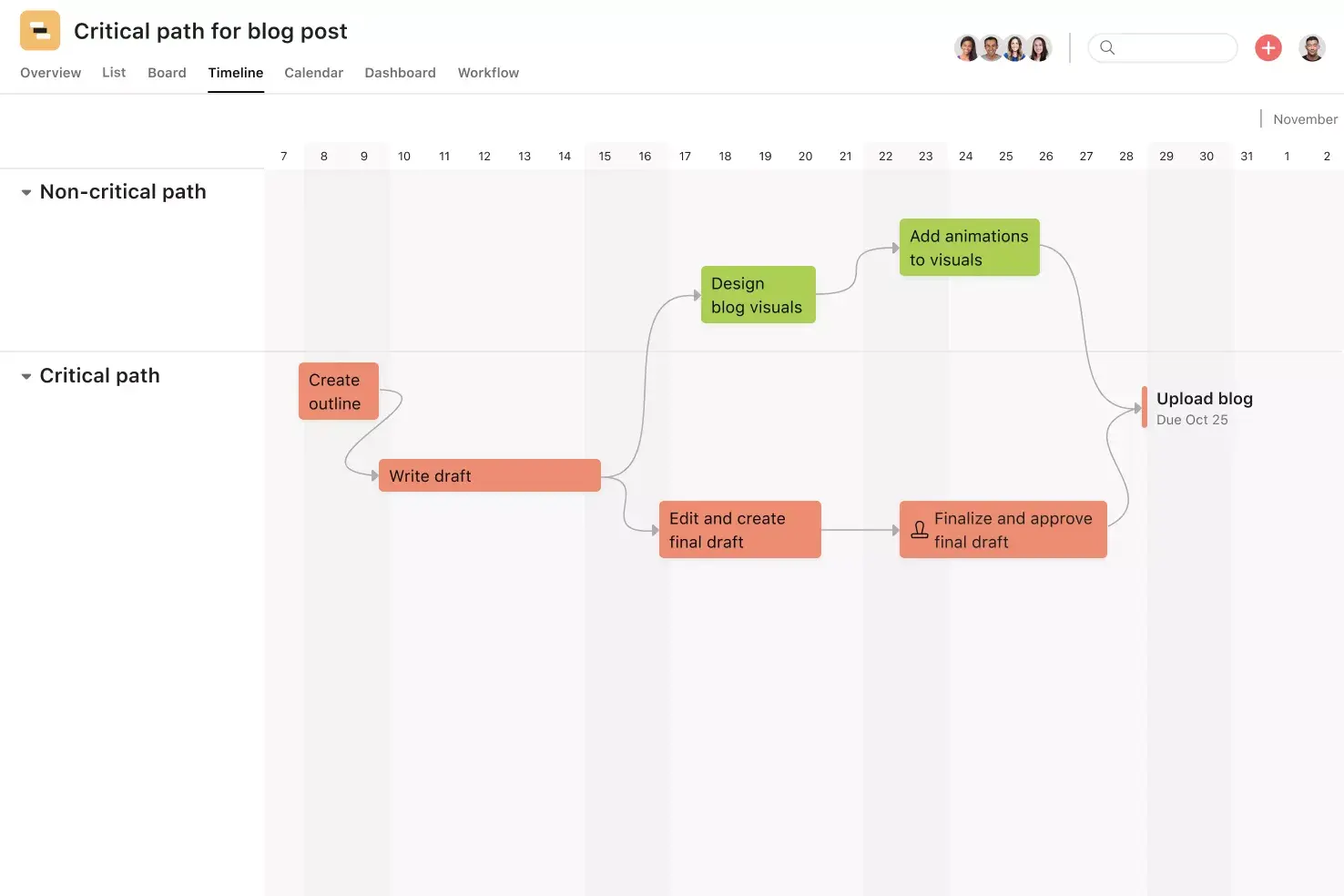
Use List view when the team needs to scan task details, owners, due dates, and fields. Use Board view when work moves through stages, such as requested, in progress, review, and complete. Use Calendar view when deadlines matter most. Use Timeline view when one task depends on another.
The project view should match the question people ask most often. If the question is “Who owns what?”, use List view. If the question is “What stage is each task in?”, use Board view. If the question is “What’s due this week?”, use Calendar view.
Your team can switch views without rebuilding the template, so managers, contributors, and stakeholders can review the same work in different dashboard formats.
7. Track progress and performance
Track progress by using the template as your team’s working view of what’s done, what’s active, and what needs attention next. In Asana, you can filter a task-tracking list by owner, due date, priority, or status, then switch to Board view to review stages, Calendar view to check upcoming deadlines, or Timeline view to spot scheduling problems. For recurring work, use dashboards or project status updates to summarize progress without having to rebuild the task list each week.
After one or two cycles, review how the template performed. Remove fields people ignored, add tasks for missed steps, and adjust sections that caused any confusion. A task plan template works best when it reflects how the team actually manages work, not how the process looked before work started.
Task templates for every workflow
A general task-tracking template can work for many teams, but the best format depends on your team's work cadence. Use a simple to-do list for daily tasks and a more detailed layout for complex projects. Browse more Asana templates for project planning, marketing, operations, product launches, and team workflows.
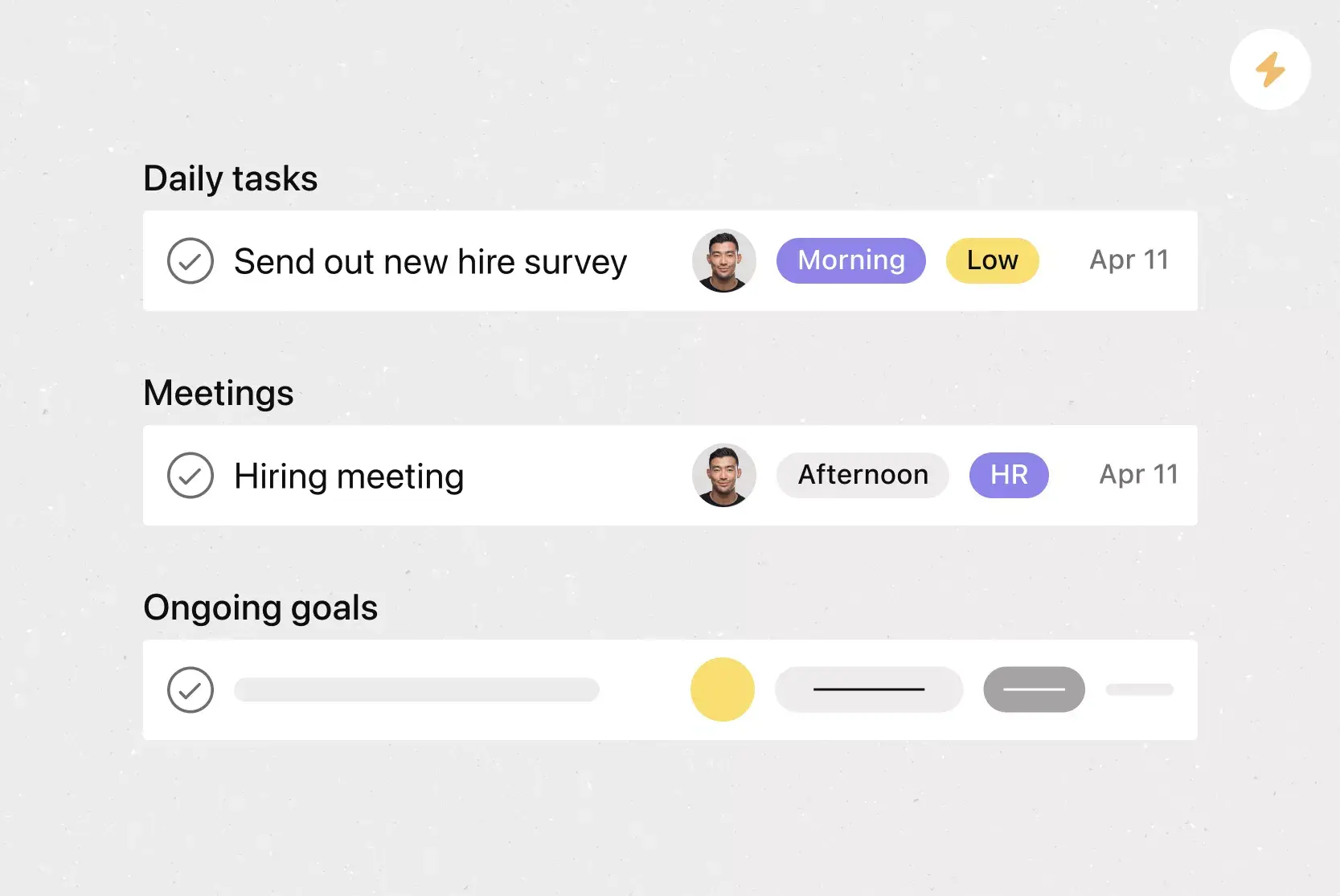
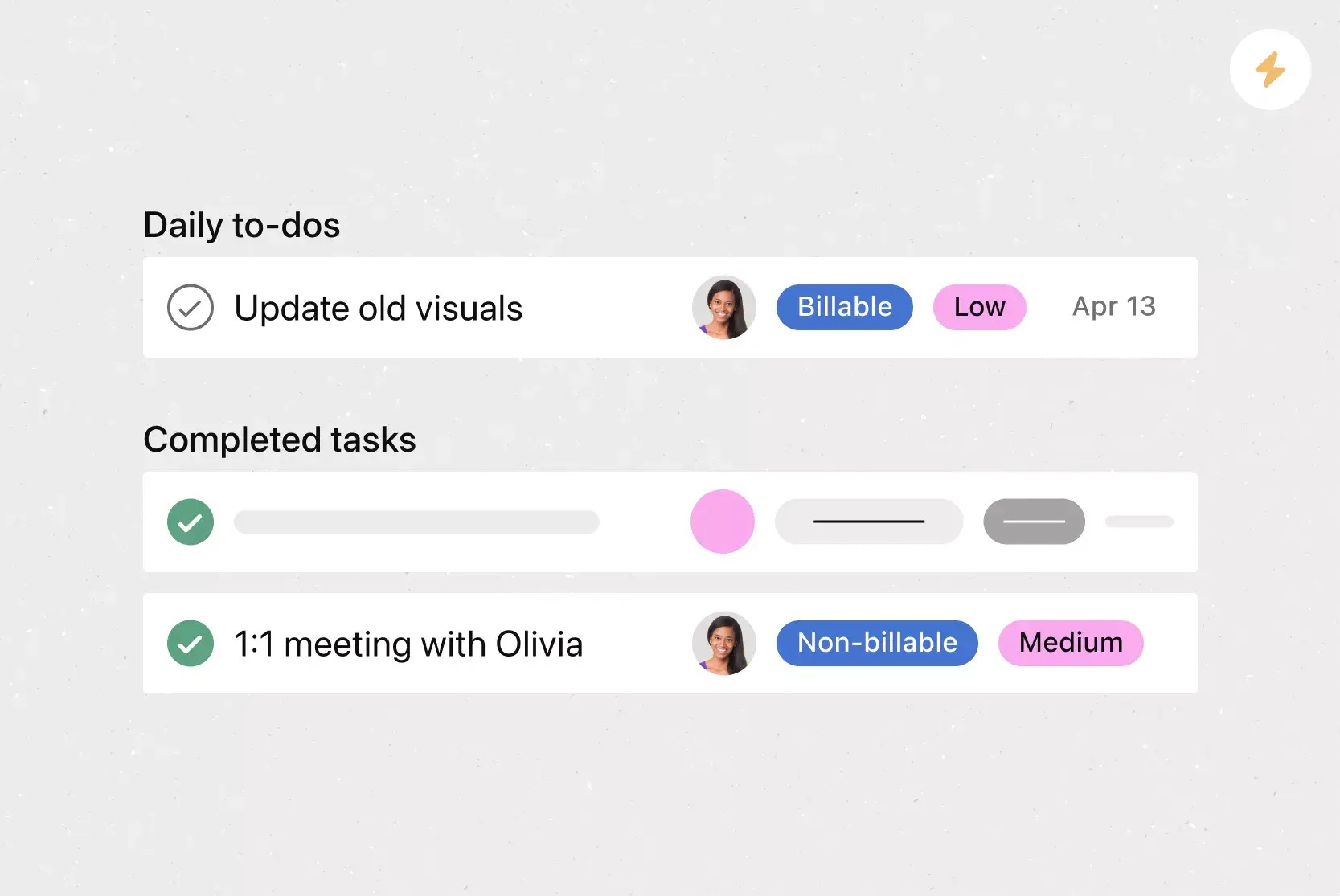
Use a daily task template to manage work that needs attention today, such as follow-ups, personal priorities, overdue tasks, or short team check-ins. Add priority levels, due dates, task description, and end-of-day status fields.
Use a weekly task list template to plan priorities, deadlines, and deliverables for the next five business days. Weekly planning works well when your team needs more structure than a basic to-do list but not a full project plan.
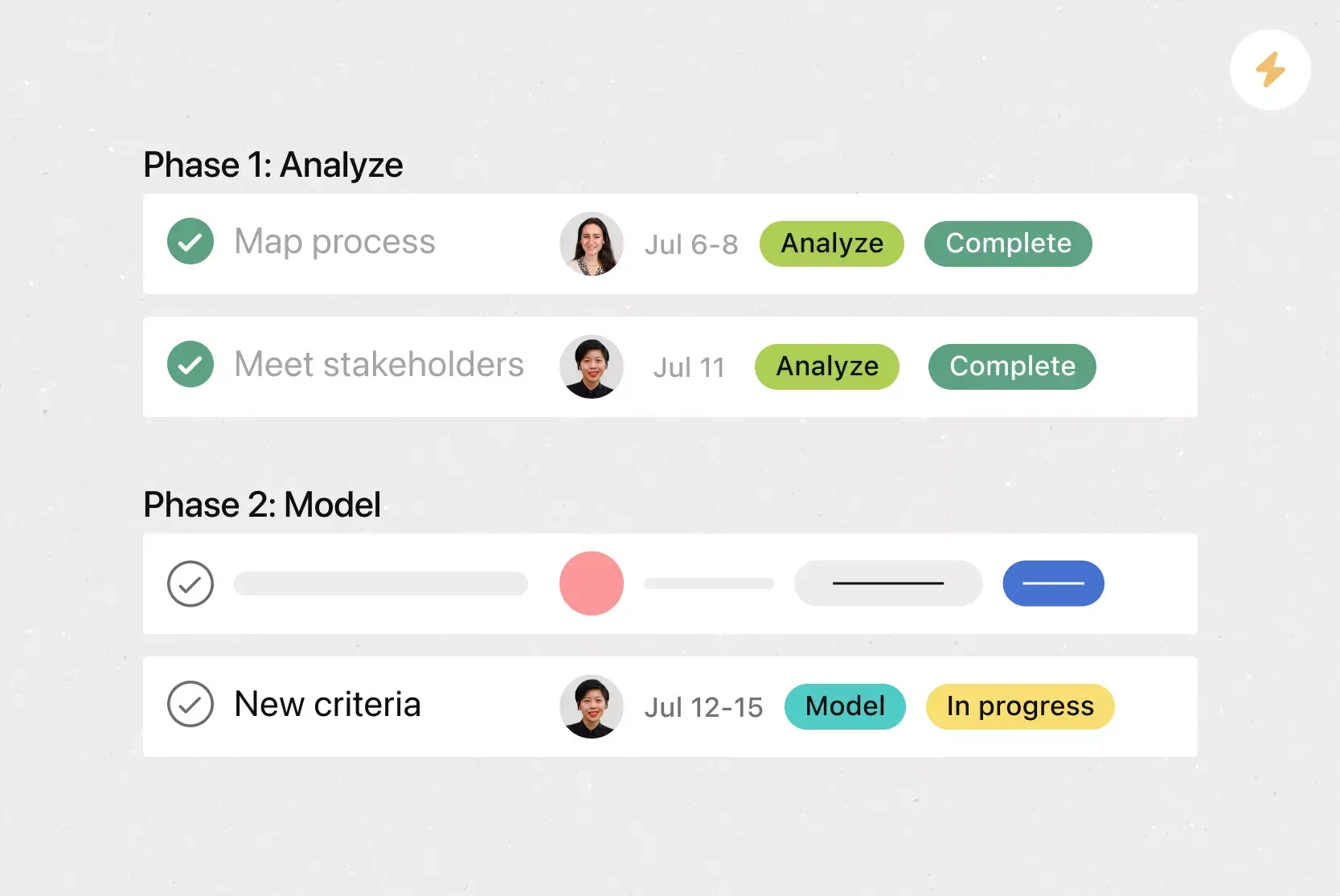
Use a project task template to organize work with multiple phases, roles, deadlines, and dependencies. Add sections for kickoff, planning, production, review, launch, and follow-up.
Use a team task list template to manage shared work from one place. Add tags for team, assignee, status, deadline, and blocker, so managers can prioritize tasks and track projects at a glance.
Use a task checklist template for repeatable workflows, such as onboarding, QA, publishing, monthly reporting, or event setup. Add subtasks for each step and then assign them to owners.
Use a to-do list template to capture simple tasks, personal priorities, and team follow-ups in one place. Add owners, due dates, priority levels, and notes when a task needs more context.
Why a live task template beats a spreadsheet
A task list template in Excel, Word, Google Sheets, or PDF can help you organize initially. But once work begins, someone still has to update task statuses, notify owners, change deadlines, resend files, and check which tasks are blocked.
A live task template gives your team one place to manage those updates. In Asana, teammates can update tasks assigned to them, add comments or dependencies, switch between project views, and create rules for repeatable steps.
Luxury goods manufacturer Montblanc shows how much time teams can save when task tracking, integrations, and automation work together. According to Asana’s customer story, Montblanc linked nearly 1,700 tasks from 14 other apps and saved about 645 hours of work. In one year, employees created more than 4,200 automations, saving an estimated 25 hours per month.
That’s hard to do with a static task sheet template. A spreadsheet can itemize the work, but it won’t assign tasks, send updates, map dependencies, or route repeatable steps for your team.
Create this templateUseful features in Asana’s task template
A feature is a built-in Asana function that helps you assign, organize, track, or report on work. Explore all Asana features to discover more ways to manage your task template.
Custom fields: Add fields for priority, status, task type, department, approval stage, effort, or deadline. For a task tracking template, custom fields make it easier to sort work by owner, due date, blocker, or priority.
Asana Dash: Use Asana AI to review blocked tasks, pending decisions, deadline changes, and work that needs your attention. For a task template, Dash can connect decisions from meetings, Slack threads, and emails back to related projects, then recommend the next step or the right AI Teammate for follow-up.
Task dependencies: Connect tasks that rely on other work. For example, a design review may need to finish before a developer starts implementation. Dependencies help teams spot blockers before one missed step affects the rest of the schedule.
Rules: Automate repeatable task actions, such as assigning new work, moving completed tasks to a done section, or updating a field when a task enters review.
Project views: Switch between List, Kanban Board, Calendar, Timeline, Gantt, and custom views. A manager might use List view to review owners and due dates, while a creative team uses Board view to move tasks from brief to review to approved.
AI Teammates: Use AI Teammates to draft task plans, summarize project context, flag risks, and suggest next steps. Review AI output before your team uses it.
Integrations that connect your task template
An integration connects Asana with another app, so your team can manage task updates without copying details between tools. Explore all Asana integrations to see the apps you can connect to your task template.
Slack: Turn Slack messages into Asana tasks with assignees and due dates. You can also comment on tasks, mark tasks complete, and receive project updates from Slack.
Google Drive: Attach files to Asana tasks, including briefs, Google Sheets and Docs, creative files, and meeting notes. Teams can open the file from the task instead of searching through folders.
Microsoft Teams: Create Asana tasks during Teams meetings and connect conversations to follow-up work. Use it when meeting notes need owners, due dates, and status updates.
Jira Cloud: Connect Asana tasks with Jira issues when a task template includes engineering work. Technical and non-technical teams can track related work without duplicating every update.
Salesforce: Create Asana tasks from Salesforce activity, such as customer handoffs or post-sale follow-ups. Use it when sales work needs to trigger next steps for another team.
Zoom: Create and assign Asana tasks during Zoom meetings, then connect meeting context to the related work. Use it when action items need to leave the call with owners and deadlines.
Create better team task list templates with Asana
A task template should reduce setup time without adding more admin overhead. In Asana, your template becomes a project your team can update as work evolves, with owners, due dates, statuses, views, dependencies, automation, and support from Asana AI.
Start with the task template, customize it for your workflow, and reuse the structure for daily tasks, weekly planning, project tracking, team requests, or personal work. Are you ready to supercharge your productivity? Get started with Asana today.
Create this templateFAQs about task templates
This task template includes task names, due dates, priority levels, dependencies, and files. In Asana, add custom fields and subtasks, then adapt the layout from a daily task list to a project task tracker.
A task template provides a reusable structure for task names, owners, due dates, priorities, statuses, and notes. In Asana, the task template becomes a live project where teams add comments, attach files, update dates, and track work in multiple views.
Create a task list by recording tasks, assigning owners, and adding due dates, priority levels, and statuses. Break larger work into subtasks. In Asana, start with a task list template and ask Asana AI to draft tasks or subtasks.
A task sheet should include a task name, owner, due date, priority, status, notes, files, and links. Team versions may also need dependencies, approval steps, blocker notes, and project views, while personal versions may only need tasks and deadlines.
A task tracker template in Excel or Google Sheets suits simple plans and static reports. For shared work, build a live task tracker in Asana, then export project data to CSV or save the project as a PDF.
Yes, Word offers checklist templates for static lists, but they cannot update owners, send reminders, or show progress automatically. For repeatable workflows, build a task checklist template in Asana with subtasks, owners, due dates, comments, and status fields.
A task list template records what needs to be done. A task tracker template adds owners, due dates, status, and blockers. Personal work may need a task list template; team projects often need a task tracker template with deadlines and dependencies.
The best task organizer depends on personal or team needs. A daily checklist may suit personal tasks. For teamwork, choose a tool with owners, due dates, comments, automation, and project views that turn a task list into shared work.
Related templates

![[Templates] Editorial Calendar (Share image)](https://assets.asana.biz/transform/5fac5de2-17f6-4d69-8cd3-091a887a24bd/TG23-web-thumbnail-042-editorial-resource-management-static-2x?io=transform:fill,width:2560&format=webp)
![[Templates] Marketing Project Plan (Card) image](https://assets.asana.biz/transform/af70ac54-97b9-4639-b639-be3a3d951e3e/TG23-web-thumbnail-016-stakeholderregister-static-2x?io=transform:fill,width:2560&format=webp)
![[Templates] Operations Project Plan (Card)](https://assets.asana.biz/transform/ec3bf1b9-cbcd-413c-a20c-82bf1dbe10d2/TG23-web-thumbnail-008-risk-management?io=transform:fill,width:2560&format=webp)
![[Template] IT project plan (Card image)](https://assets.asana.biz/transform/8aa523a9-4dcb-4053-8e69-7bdf900b48b9/web-product-template-thumbnail-IT-EN-US?io=transform:fill,width:2560&format=webp)
![[Old Product UI] Sprint planning project with t-shirt sizes in Asana (Lists)](https://assets.asana.biz/transform/34817820-b376-4110-a8be-9a2c7c546a77/inline-project-planning-t-shirt-sizing-product-ui-list-view-sprint-planning-en-2x?io=transform:fill,width:2560&format=webp)
![[Templates] RFP Process (Card image)](https://assets.asana.biz/transform/14aa111b-ab22-483f-bfd1-3090acb7d2a5/RFP-process-premium-m?io=transform:fill,width:2560&format=webp)

![[HR Project Plan] template Card Image](https://assets.asana.biz/transform/663b8e5e-89c9-4b0b-b48b-1b17e01d1889/TG23-web-thumbnail-033-process-improvement-static-2x?io=transform:fill,width:2560&format=webp)
![[Templates] Waterfall project management (card image)](https://assets.asana.biz/transform/d87fc21c-53f0-4bc9-9094-9789b963be9b/article-project-management-waterfall-project-management-methodology-2x?io=transform:fill,width:2560&format=webp)
![[Templates] Status report (card image)](https://assets.asana.biz/transform/9c82d399-782b-40d3-9eb1-fd7544bef794/article-project-management-project-management-maturity-model-2x?io=transform:fill,width:2560&format=webp)
![[Templates] Event Marketing Plan (Card image)](https://assets.asana.biz/transform/6c7b9329-b612-4732-910a-7917fa079f0b/TG23-web-thumbnail-014-project-chart-static-2x?io=transform:fill,width:2560&format=webp)
![[Templates] Communication plan (card image)](https://assets.asana.biz/transform/3dc9eadf-9d2d-40a2-a05d-63adb32a1de7/article-collaboration-synchronous-vs-asynchronous-communication-2x?io=transform:fill,width:2560&format=webp)
![[Templates] Design Project Plan (Card image)](https://assets.asana.biz/transform/c768a28c-822f-420f-93f9-f2eea4c93780/TG23-web-thumbnail-032-bill-of-materials-static-2x?io=transform:fill,width:2560&format=webp)
Create templates with Asana
Learn how to create a customizable template in Asana. Get started today.