


Social media calendar template
Plan and schedule social posts in one place with a free template that coordinates your team and keeps campaigns on track.
Sign up to use this template.
Social media calendar template
Plan and schedule social posts in one place with a free template that coordinates your team and keeps campaigns on track.
Use templateSign up to use this template.
INTEGRATED FEATURES
Recommended apps


Summary
Managing your company's social media content isn’t always easy. You have to keep track of where and when each post goes live. Each platform has its own quirks, and making sure your posts match your campaigns can make the process feel overwhelming.
Asana’s free social media calendar template lets you see your whole posting schedule, make quick changes, work with other teams, and avoid slowdowns. In this article, you’ll find out what a social media calendar template is, how to make one, and how to use this free tool to keep your content organized and your team working together.
![[Old Product UI] Social Media Content Calendar in Asana (Calendar View)](https://assets.asana.biz/transform/6e7eb542-07b2-47a9-a28b-41d2570d474b/inline-marketing-social-media-content-calendar-2-2x?io=transform:fill,width:2560&format=webp)
What is a social media calendar template?
A social media calendar template is a pre-built planning tool that helps you organize, schedule, and track your social media posts across platforms in one place. With Asana's free social media calendar template, you can collaborate with cross-functional teams, plan upcoming campaigns, and make sure every post aligns with your overall social media strategy.
Asana's pre-built template includes custom tags so you can track key details for every post:
Platform: Which social media channel the post will go live on.
Creative assets: The post's copy, images, and video elements.
Schedule: The date and time the post goes live.
What are the benefits of Asana's content calendar template?
Our free social media calendar template has color-coded sections and custom tags to help you manage your campaigns easily. Because it’s part of a project management tool, not just a spreadsheet, you can quickly make changes as your priorities change.
See templateWith our content calendar template, you can do the following:
Full visibility: Visualize your entire social media post lineup at a glance, and use custom fields to see which posts are going out, when, and on which channels.
Centralized planning: Schedule, track, and manage your content creation and production all in one place. Brainstorm new content ideas, track upcoming posts, and review metrics from previous posts.
Streamlined approvals: Assign, review, and approve work in one spot. Use task dependencies to quickly view and resolve scheduling conflicts.
Content repository: Plan your social posts ahead of time and balance both timely and evergreen content. Store everything—copy, images, @mentions, and hashtags—in one easy-to-access spot.
Flexible scheduling: Quickly schedule or reschedule content by dragging and dropping in Calendar view.
Strategic alignment: Align your social content with your marketing plan and share your calendar with stakeholders for visibility and accountability.
How to create a social media calendar
Whether you’re starting fresh or organizing your current posting process, building a social media calendar can be simple. Here are some steps to help you keep your content organized and your team working together.
Define your goals and audience. Before you plan content, decide what you want to achieve—like brand awareness, engagement, or lead generation. Next, figure out who your target audience is and what topics interest them.
Choose your social media platforms. Focus on where your audience spends the most time. If your brand is visual, Instagram and TikTok might be the best fit. For B2B, LinkedIn and X usually work better.
Plan your content mix. Decide what types of content you'll publish, such as videos, blog articles, infographics, stories, and promotional posts. A balanced mix keeps your feed engaging and supports your content marketing goals.
Set a posting schedule. Decide how often to post on each platform and find the best times to reach your audience. It’s better to be consistent than to post a lot, so pick a schedule you can stick with.
Organize your content in a shared tool. Instead of using spreadsheets, try a content calendar platform to keep your calendar in one place. Your team can see what’s coming up, track progress, and work together on content in real time.
Review, refine, and repeat. After you publish, watch your engagement metrics and update your calendar based on what’s working. Your social media calendar should change as you learn, so keep improving it over time.
A pre-built template lets you skip setup and start planning right away. Asana’s free social media calendar template gives you a ready-to-use structure with custom fields, calendar views, and built-in collaboration tools.
How do I use Asana's social media calendar template?
It’s easy to use Asana’s free content calendar template. Just create a new project by copying our template, then fill it in with details for your social media calendar, like:
The platform or channel on which each post will go live, such as Facebook, X, LinkedIn, or Instagram.
Relevant post information, such as the post's title, the copy associated with the post, and any image or video elements included in the post.
Your publishing schedule, including the date and time you plan to publish the post.
The status of the post, for example, "writing," "in design," or "published."
The category or marketing campaign the social post aligns with, such as "how to," "customer stories," "product launch," etc.
After you’ve filled out the free template, use the calendar to see your campaign timeline. Invite key team members and stakeholders—like social media managers, content creators, or marketing team members—to work together.
See templateContent calendar template checklist
Having trouble posting regularly or keeping your content organized? Use this checklist to help you improve your social media strategy with your content calendar template.
1. Conduct a social media audit
Run a social media audit by analyzing engagement metrics (likes, shares, comments) for each post on all preferred social media platforms.
Identify top-performing and underperforming content types.
Adjust both your messaging and content planner template based on data-driven insights.
2. Select the most relevant social networks
Identify platforms where your target audience is most active.
Prioritize platforms based on business type (e.g., Instagram and TikTok for visual brands, LinkedIn for B2B).
3. Align content types with brand voice and goals
Schedule your social media planning calendar with a mix of videos, blog articles, infographics, photos, stories, and live streams.
Align each content piece with specific marketing goals (e.g., brand awareness, lead generation, customer engagement).
4. Prepare ready-to-use content and hashtags
Create reusable content-planning templates for different post types (e.g., promotional, educational, user-generated).
Organize hashtags by category (e.g., industry-specific, trending, branded messaging).
Include placeholders for images, captions, and CTAs in your content calendar template.
5. Incorporate important dates and campaigns into your marketing calendar
Your social media marketing team should plan themed content around these dates to capitalize on trending topics.
Align content with upcoming product launches, promotions, or marketing campaigns.
Create a timeline within your social media content planner for pre-launch teasers, launch announcements, and post-launch follow-ups.
6. Establish a consistent posting schedule
Determine optimal posting times for each social media platform.
Schedule posts regularly and ensure a balanced mix of content types.
7. Use social media scheduling tools
Choose a social media content calendar tool that supports all your selected platforms.
Automate your content calendar's posting schedule with integrations like Buffer or Hootsuite.
8. Monitor engagement and analyze data
Regularly monitor social media metrics, including likes, shares, comments, click-through rates, and reach.
Modify your content calendar template to focus more on what resonates with your audience.
Integrations for Asana's social media calendar template
To get the most out of our social media content calendar template, take advantage of the integrated features and apps that sync with Asana. These provide greater visibility for your social media team and reduce friction from app switching.
Integrated features
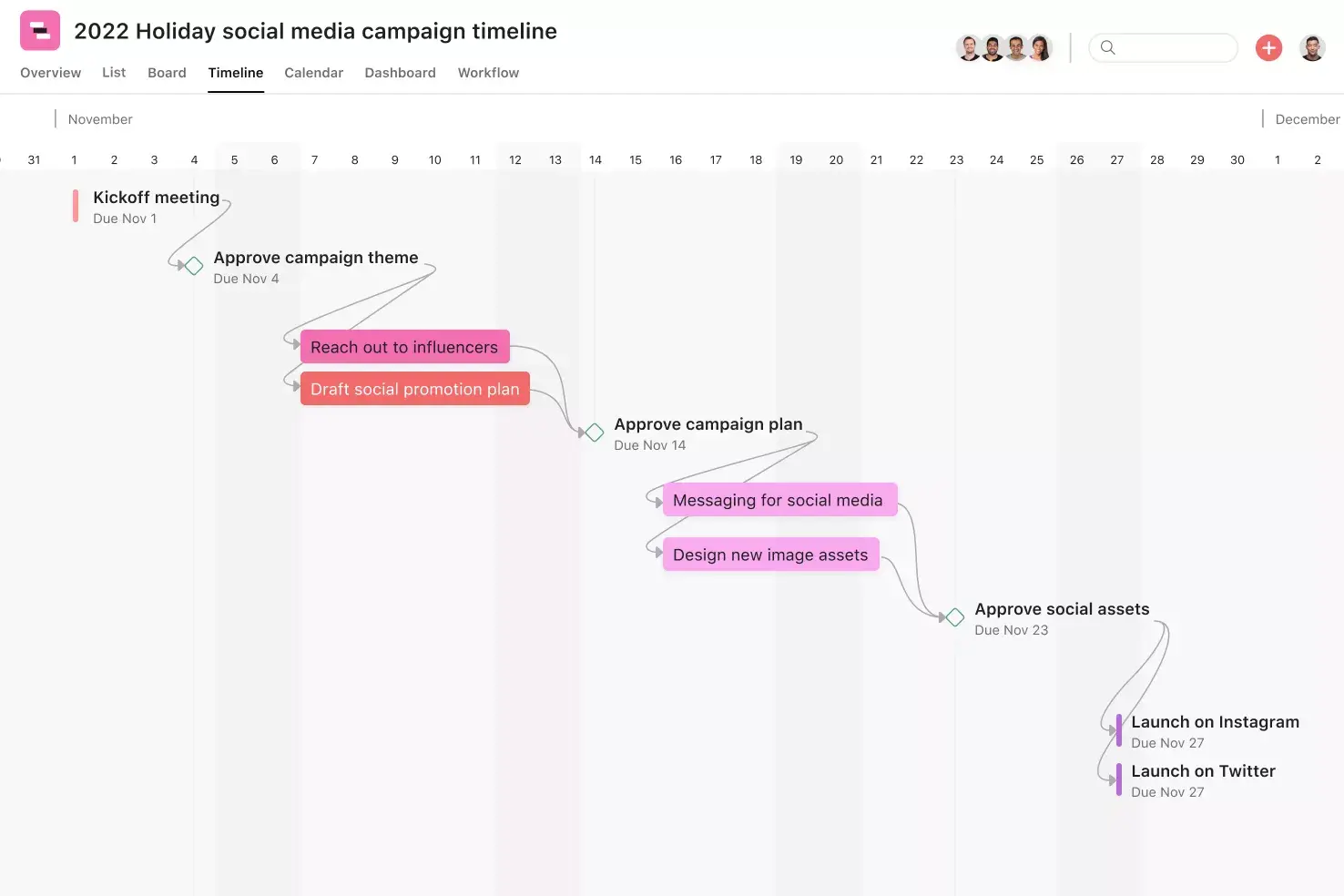
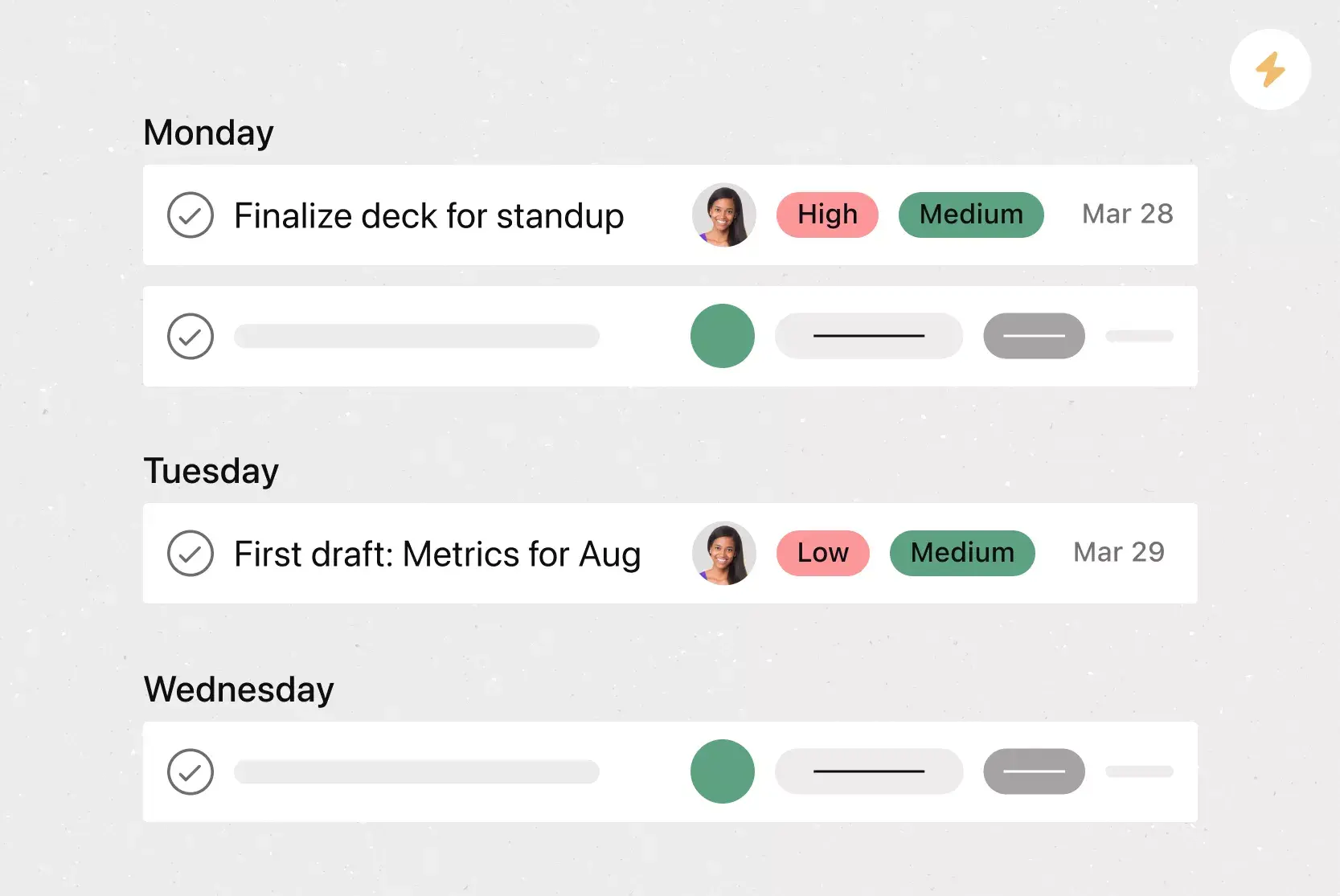
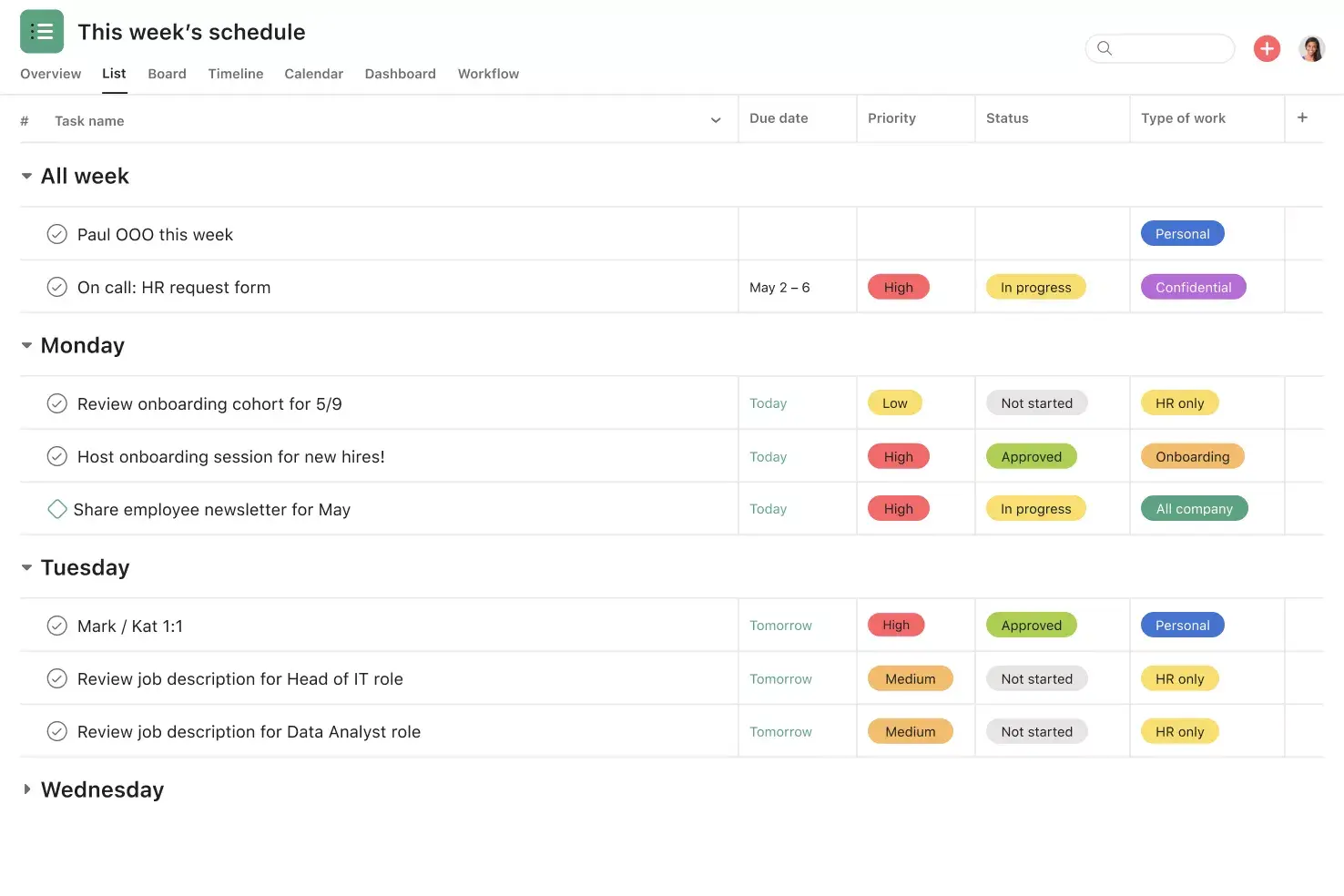
Calendar View. See all upcoming and past work in a calendar format so you can track deadlines at a glance. Click into any task to view custom fields, dependencies, subtasks, and more.
Custom fields. Tag, sort, and filter work with unique custom fields for any information you need to track, from status to platform. Share custom fields across tasks and projects to ensure consistency across your organization.
Subtasks. Break larger to-dos into smaller components while keeping them connected to the parent task. This is especially useful when a post needs multiple contributors or approval steps before going live.
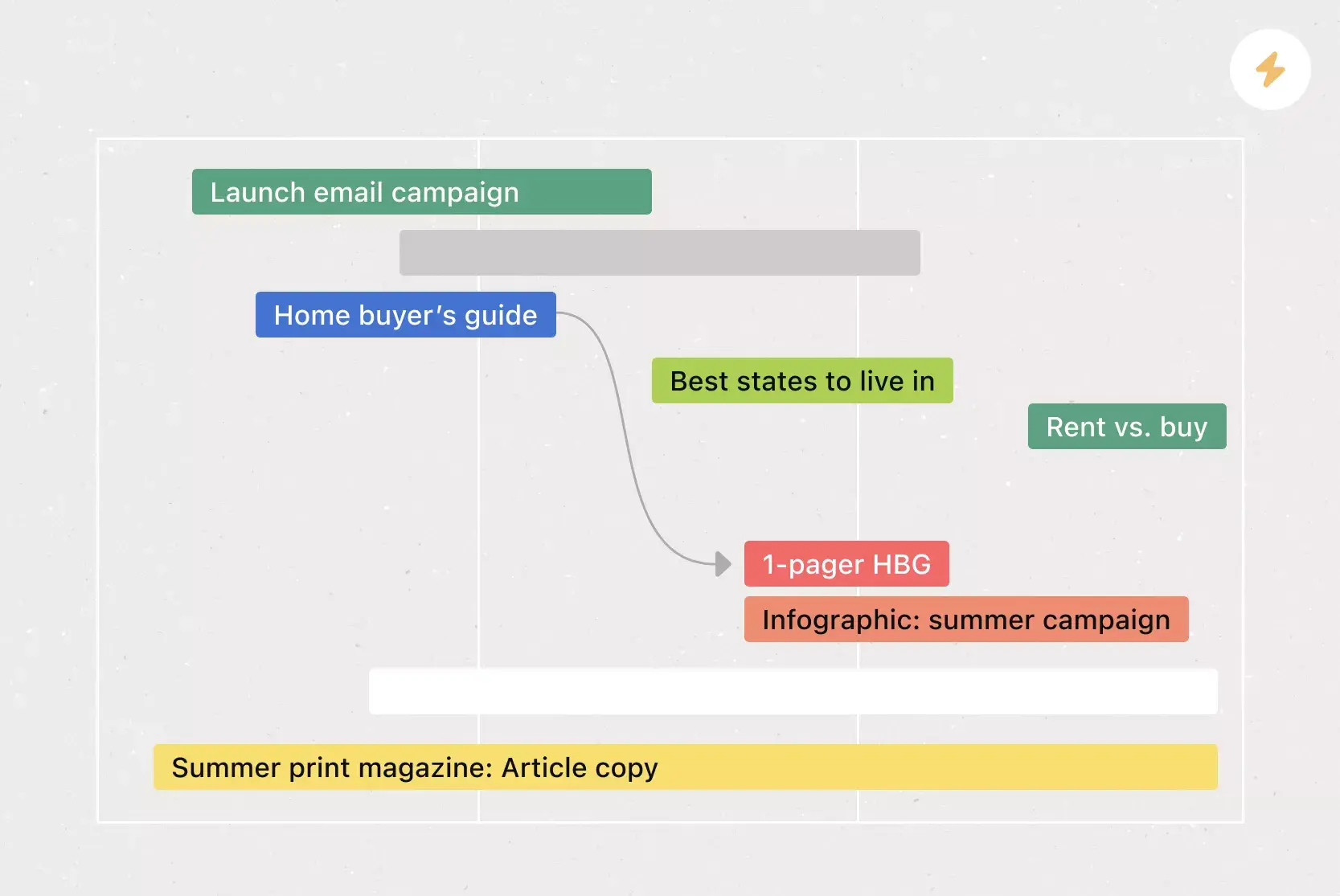
Dependencies. Mark a task as waiting on another so your team knows when their work is blocked and when to start. If a dependent task is rescheduled, Asana notifies you automatically so you can adjust your timeline.
Recommended apps
Figma. Teams use Figma to create user flows, wireframes, UI mocks, prototypes, and more. Now, you can embed these designs in Asana, so your team can reference the latest design work in context with related project documents. And unlike screenshots, live embeds update in real time to reflect changes made in a design file, eliminating the overhead of finding the right files and updating images.
Hubspot. Create Asana tasks automatically using HubSpot Workflows. With HubSpot Workflows, you can use all the customer data in HubSpot CRM to create automated processes. This integration enables you to seamlessly hand off work between teams, for example, when deals or tickets close in HubSpot.
Get started with your social media calendar
A well-organized social media calendar helps your team stay on track, work together smoothly, and ensure every post supports your bigger marketing goals. You can plan ahead, see what’s working, and adjust your strategy using real data, instead of rushing to come up with last-minute ideas.
See templateFAQs about social media calendar templates
Start by defining your goals, choosing the right platforms, and mapping out a content mix and posting schedule. A pre-built digital template, like Asana's free social media calendar template, gives you a ready-made structure so you can skip the setup and start planning right away.
Yes, tools like Buffer, Hootsuite, and Asana all offer free options for planning and scheduling social media posts. Asana's free social media calendar template goes further by combining scheduling with task management, team collaboration, and custom fields in one place.
A content calendar template covers all content types, including blogs, videos, and emails, while a social media content calendar template focuses specifically on scheduling and managing posts for social platforms. Both help ensure consistency, but the social media version is tailored for platform-specific strategies and engagement.
Look for customizable fields for post details like captions, publish dates, platforms, and content types, along with tracking for post status, approvals, and performance metrics. These features help you plan, run, and analyze your social media campaigns from one place.
Yes, you can adapt a general content calendar template into a social media content planner by adding platform-specific details like post dates, captions, visuals, and channel selection. This approach gives you the flexibility to manage all your content planning in one place.
Related templates
![[Templates] Editorial Calendar (Card image)](https://assets.asana.biz/transform/5fac5de2-17f6-4d69-8cd3-091a887a24bd/TG23-web-thumbnail-042-editorial-resource-management-static-2x?io=transform:fill,width:2560&format=webp)
![[Templates] Creative Asset Feedback and Approval (card image)](https://assets.asana.biz/transform/c768a28c-822f-420f-93f9-f2eea4c93780/TG23-web-thumbnail-032-bill-of-materials-static-2x?io=transform:fill,width:2560&format=webp)
![[Templates] Agency Collaboration (card image)](https://assets.asana.biz/transform/f289a866-6162-4b01-9f42-13fdb9147144/TG23-web-hero-047-implementation-plan-thumbnail-2x?io=transform:fill,width:2560&format=webp)
![[Templates] Campaign management plan template banner image](https://assets.asana.biz/transform/d0762c4d-c7d8-49bc-823b-4b93513e6b48/Template_CampaignMgmt_Thumb?io=transform:fill,width:2560&format=webp)
![[Templates] Creative Requests (Card image)](https://assets.asana.biz/transform/963f258c-f2d0-4281-a9ff-b2244ee2e670/Template_CreativeReq_Thumb?io=transform:fill,width:2560&format=webp)
Execute your social media strategy faster
Keep social posts on track with our social media content calendar template.