Building an AI Pipeline to Connect Meeting Summaries to the Work Graph
A meeting summary tells you what people discussed. It rarely tells you where the work lives.
Picture a weekly launch sync. The summary reads: “Dana flagged that the pricing page copy is blocked on legal review, and the team agreed to push the beta date by a week.” The summary is accurate, but it doesn’t help you act. To follow up, you still open Asana, search for the pricing page task, find the comment about legal review and look for the latest launch status update. Do that for every topic in every meeting, and the summary becomes one more place where context sits apart from the work.
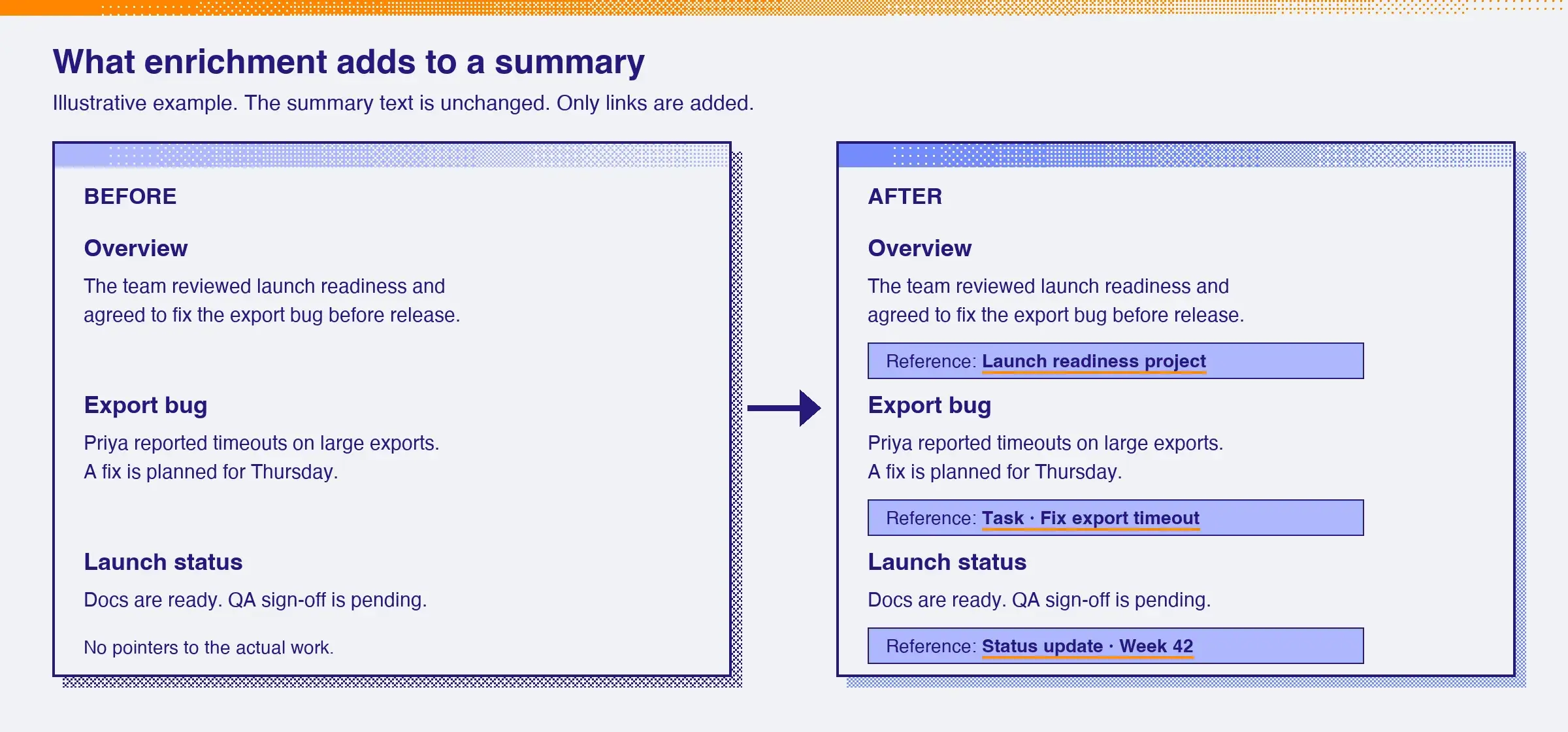
This post describes summary enrichment, a feature we shaped for AI Meetings to close that gap. It adds links from a generated summary to the Asana objects the summary talks about. “The pricing page copy” points to the actual task, and “push the beta date” points to the status update that records the change.
Two problems make this harder than it sounds:
Finding the right reference. Summaries use loose, conversational language, and a large workspace holds many tasks with nearly identical names. A keyword search for “pricing page” can return dozens of candidates, and only one of them belongs to this conversation.
Checking permissions. Everyone who can access the meeting sees its summary, but those people don’t all have access to the same parts of Asana. Showing a private task’s title to the wrong person is worse than showing no link at all.
The pipeline below handles both problems. LLMs plan the searches and pick the best match, and code enforces access before and after the models run.
Summaries meet the Work Graph
This flow starts right after you exit a Zoom or Microsoft Teams call. When the call ends and transcription is on, we receive a transcript and convert it into a summary. Separately, the Work Graph is the set of Asana objects that connect to each other: projects have tasks, tasks relate to other projects, and users work on projects.
We wanted to connect the two. The summary now gets up to one "Reference:" link under the overview and under each topic section. A link can point to a project, a task, a comment, a status update or a user.
The pipeline at a glance
The enrichment pipeline starts once we generate a valid summary and finishes before we save it:
A planner (an LLM) turns the summary into a search plan.
We run the plan against the search index (OpenSearch) and collect candidate objects.
We drop every candidate that is not safe to show.
A selector (an LLM) picks at most one candidate per summary section.
Code validates the choices, re-checks access and renders the links.

Planning and retrieval
For each section, the planner extracts anchors—names, dates or phrases, such as a client or project—and any object IDs in the text. It then proposes a few searches, each with an object type (task, project, portfolio, goal or user) and a short keyword query. One search can serve several sections.
We run these searches with the permissions of the meeting’s transcriber, the user who created the transcript, and check each result against their current access. These candidates still need checks for relevance and access by the rest of the meeting’s audience.
Safety first: remove what the audience cannot see
Before the selector reviews the candidates for relevance, we check that every meeting viewer can see each object, its parent and all supporting evidence. We remove any candidate that fails this check, so the selector sees only information the whole audience can access.
We can verify the full audience only for private meetings shared with named users. If the meeting inherits access, is shared with teams or has no transcriber, we add no references.
Product limits cap searches, results per search and candidates per object type. If a cap is reached, we tell the selector its list may be incomplete. If the step times out or the LLM fails, we save the summary without references.

Smart selection of the candidates
The selector gets all summary sections and the candidate list in one call. For each section, it picks one candidate or no reference. It returns only candidate keys and pointers to evidence. It never writes markup or link targets.
A plain search returns mostly tasks, because the Work Graph has many more tasks than other objects. If the selector chose from that list, it would mostly pick tasks. We also want status updates, comments and users. So each object type gets a fixed share of the list.
Each task adds at most its two most recent comments. These numbers are product limits. We can change them when our evals and measured candidate counts show better values. Managed model selection picks the selector model for high intelligence at low cost.

Validate, re-check, render
Code checks the selector's answer. The validator confirms that we offered the chosen candidate and its evidence, that no section has duplicate decisions, and that we do not link a person the section already names.
Sharing can change while the LLM runs. Before adding references, we resolve the meeting audience again and check each viewer’s access to the selected objects. The code then replaces placeholders with trusted links built from the loaded objects. The summary text stays unchanged. If access to a linked item changes later, the reference stays in the summary, but the item cannot be opened without permission.
The whole step runs under a time budget; if it times out or an LLM call fails, we save the ordinary summary without references. Enrichment never blocks a summary from saving.
What we learned
Great AI features do not have to wait for new infrastructure. We started with a simple question: can we link loose meeting language to our data using the search we already have? The answer is yes. Language models understand meaning, and keyword search finds things quickly, so each does what it does best. The model rewrites the question into the words our data uses, and it reads the results to choose what fits. The search stays plain, trusted and fast. This gave us a working feature on day one, and it leaves a clear path to add semantic search later as a bonus.
The lesson applies to any team: look at the tools you already have, find the one step that needs understanding, and give that step to a model.
What comes next
The pipeline is already running in production where 80% of the meeting summaries now contain references to Asana objects. Over the next few months, we will gather feedback on this feature, expand our evals, and tune the whole workflow. Our goal is to give clients the most useful references.
Team Shout Outs
Anatoli Machkou, for helping me build the Meetings AI features. Ari Janover, for giving us a north star. Kiryll Kadyrka, for trusting our vision.