


ClicData + Asana
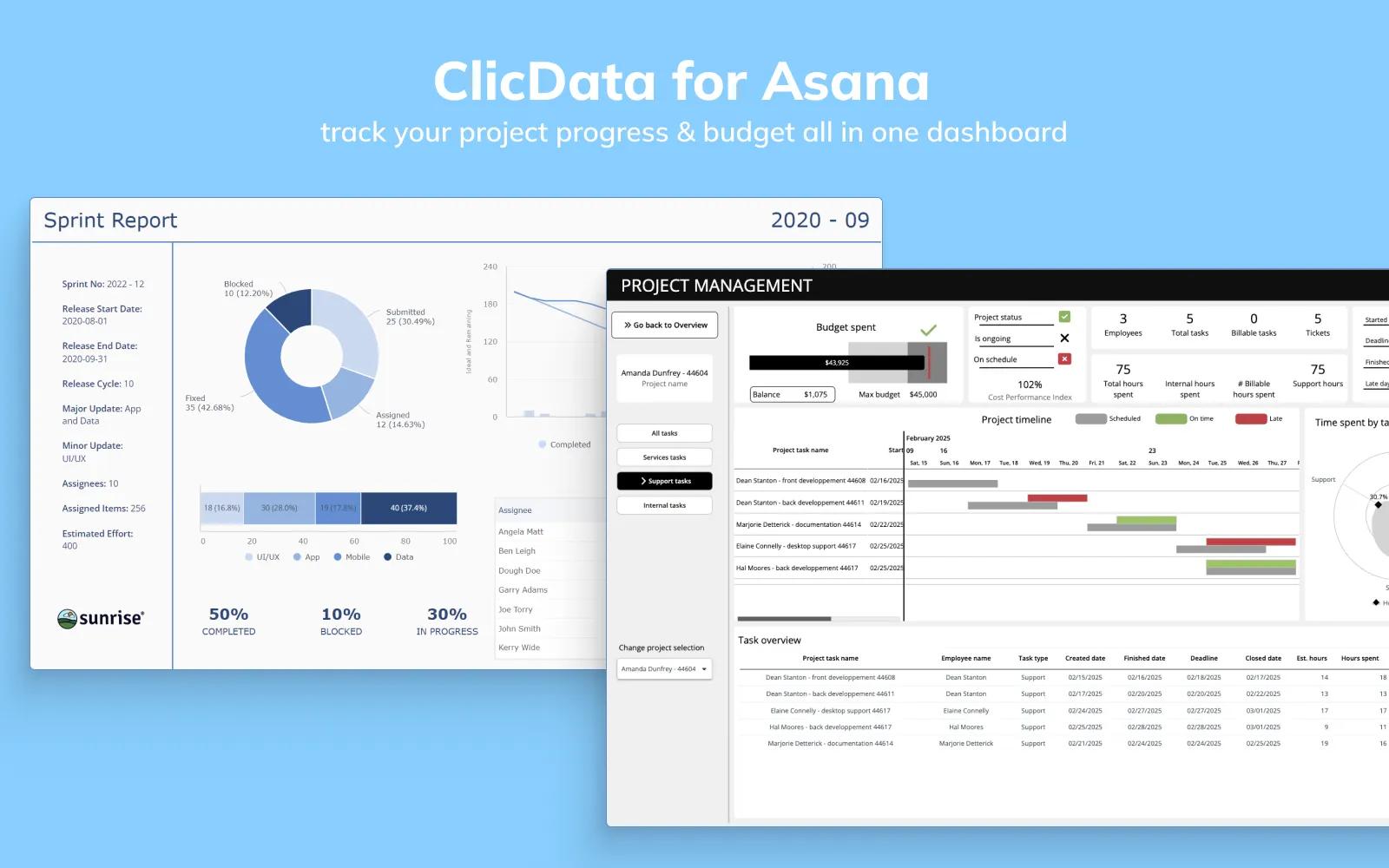
Keep track of your team’s productivity and projects progress with custom BI dashboards. Connect Asana seamlessly and automate dashboard updates and publications with ClicData.
What is ClicData?
ClicData helps Asana teams turn project and performance data into clear, actionable insights.
Designed for product development and marketing teams, ClicData connects Asana with all your other data sources — marketing platforms, product analytics, CRM, finance tools, spreadsheets, and databases in one 100% cloud-based analytics platform.
Centralize your data in a secure warehouse, transform it to match your business logic, and visualize it through interactive dashboards and reports. Track sprint progress, roadmap delivery, campaign performance, and KPIs side by side, all automatically updated.
ClicData lets you schedule data refreshes and report deliveries via email or mobile, trigger alerts when KPIs or deadlines change, manage user access, and fully customize dashboards to match your brand.
With ClicData, Asana teams gain a single source of truth to make faster, data-driven decisions across projects, launches, and campaigns.
How to connect ClicData + Asana?
- Start by creating an account (14-day free trial) at http://app.clicdata.com/signup or login to your existing account.
- Head to Main Menu > Tables & Views to setup a new table. Click on the 'Add New' button, and choose the Asana connection if one has been created yet. In this case, skip directly to the step 2 : 'Add Data'. If no connection exists, click the 'Add New Connection' button.
- Then choose the Asana connector.
- Name the Connection and head to the Authentication tab.
- Choose the project you want to pull data from and click on the 'Authenticate' button. Then follow the steps on the Asana connection page to allow access.
- Once the authorization process validated, click Create to finalize the creation.
- The Asana connector offers various data tables which you can choose from:
- Budgets
- Projects Status
- Updates
- Tags
- Tasks
- Teams
- Users
- User Tasks
- Workspaces
- Check the Schema and verify in the Preview tab that the data looks OK.
- Click on Save to start the data import.
- The data is now ready to be used in Dashboards and Reports and all other features!
- Don't forget to set up a schedule to automate the refreshing of the Asana data.
Learn more and get support
To learn more about using the ClicData + Asana integration, visit ClicData.
If you have questions, feedback, or need support, visit the ClicData support page.
Asana does not endorse or certify apps built by third-party developers. If you encounter inappropriate content or behavior, please report it here. Otherwise, please contact the app developer for support.
Collaborate effortlessly with Asana
From the small stuff to the big picture, Asana organizes work so teams know what to do, why it matters, and how to get it done. It's free to get started, simple to use, and powerful enough to run your entire business. Learn more about Asana today.