


Supervity + Asana
Supervity.ai automates Asana workflows and syncs tasks securely.
What is Supervity?
Supervity.ai is an AI-powered automation and integration platform designed to streamline business workflows by securely connecting Asana with other tools and platforms. Through the Supervity.ai Asana integration, users can:
- Automate task creation and updates across projects
- Sync project data and deadlines in real-time
- Track team productivity and project progress
- Enable intelligent notifications and workflow insights
Supervity.ai ensures secure access via OAuth 2.0, requesting only the permissions necessary to perform the integration. Users retain full control and can revoke access at any time. This integration empowers teams to save time, reduce manual effort, and make data-driven decisions without leaving their existing tools.
How to connect Supervity + Asana?
Prerequisites
Before getting started, users should ensure:
- They have an active Asana account with access to the workspace they intend to connect.
- They have permission to authorize third-party integrations (admin or appropriate workspace-level access may be required).
- They have a supported modern browser (Chrome, Edge, Firefox, or Safari).
Step 1: Access and Sign Up for Supervity
- Open a browser and visit: https://auto.supervity.ai/
- Click “Try For Free” to create an account instantly (ideal for proof-of-concept or evaluation), or select “Talk to Sales” for enterprise onboarding.
- Register using an email address.
- Set a strong password and verify your email if prompted.
- Complete the initial profile setup.
- After sign-up, you will be redirected to the Supervity workspace dashboard.
Step 2: Connect Asana to Supervity
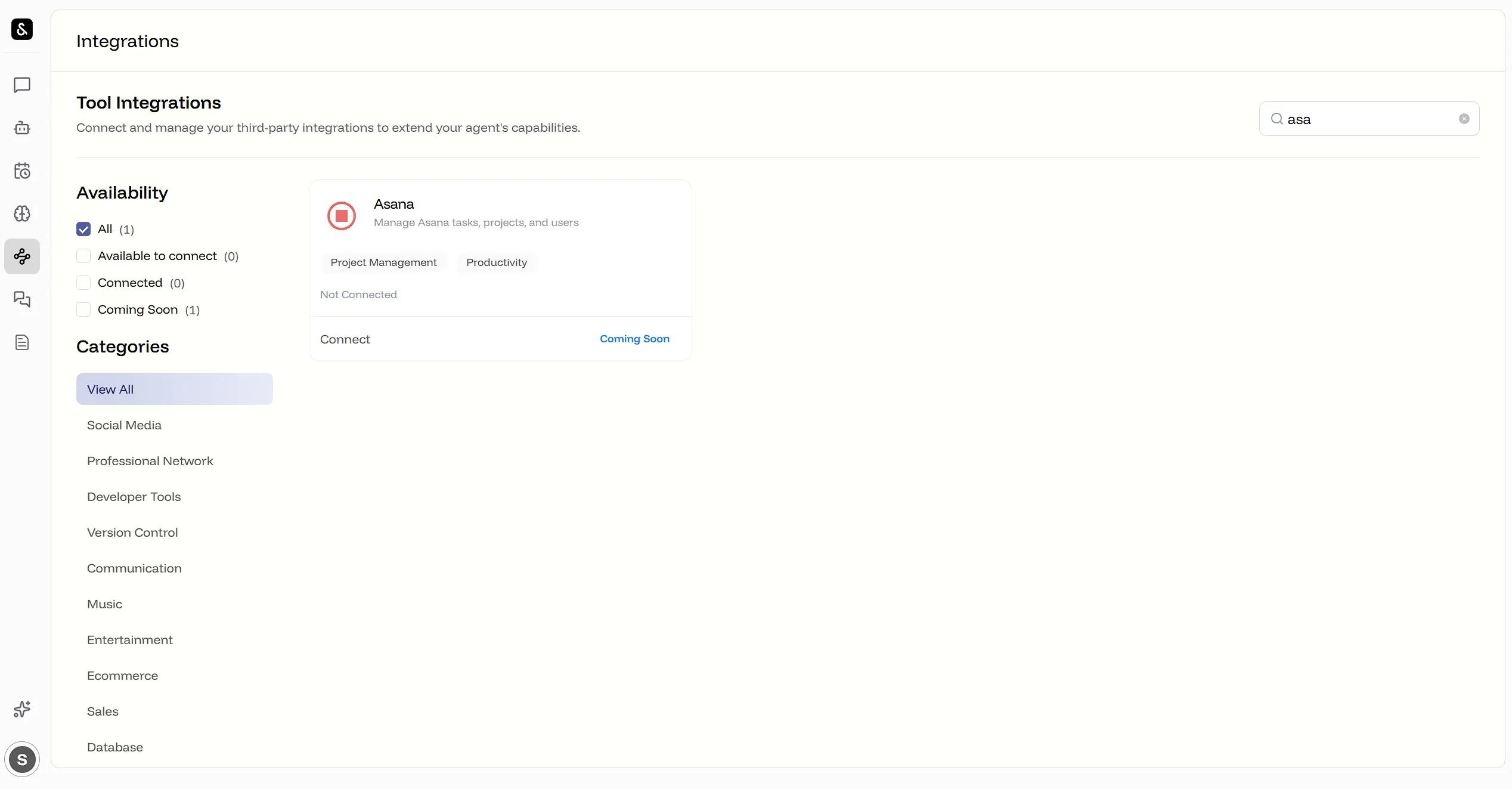
- From the Supervity dashboard, navigate to “Integrations,” “App Connectors,” or “Connected Tools.”
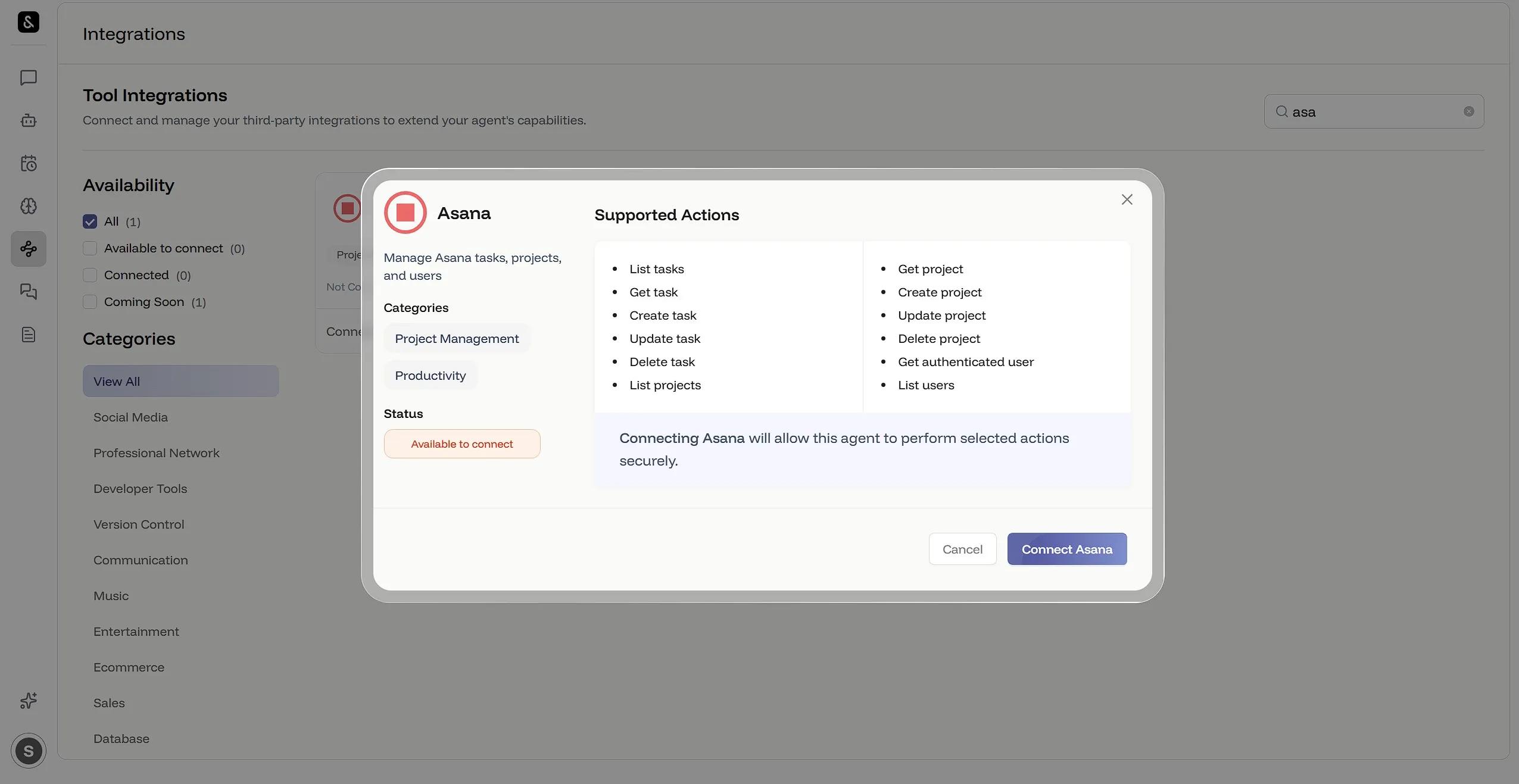
- Select “Asana” from the list of available integrations.
- You will be redirected to Asana’s OAuth authorization screen.
- Log in with your Asana credentials and grant the requested permissions.
- Select the specific Asana workspace you would like to connect.
- Once authorized, the integration status will display as “Connected.”
At this point, Supervity can securely read and write tasks and project data required for automation workflows.
Note: If Asana does not appear in the integrations list, users may need to confirm with their Supervity organization admin that integrations are enabled.
Step 3: Configure Your First Workflow / Automation
Supervity is built around AI Agents that execute multi-step workflows across connected tools.
Instructions to Build an AI Agent:
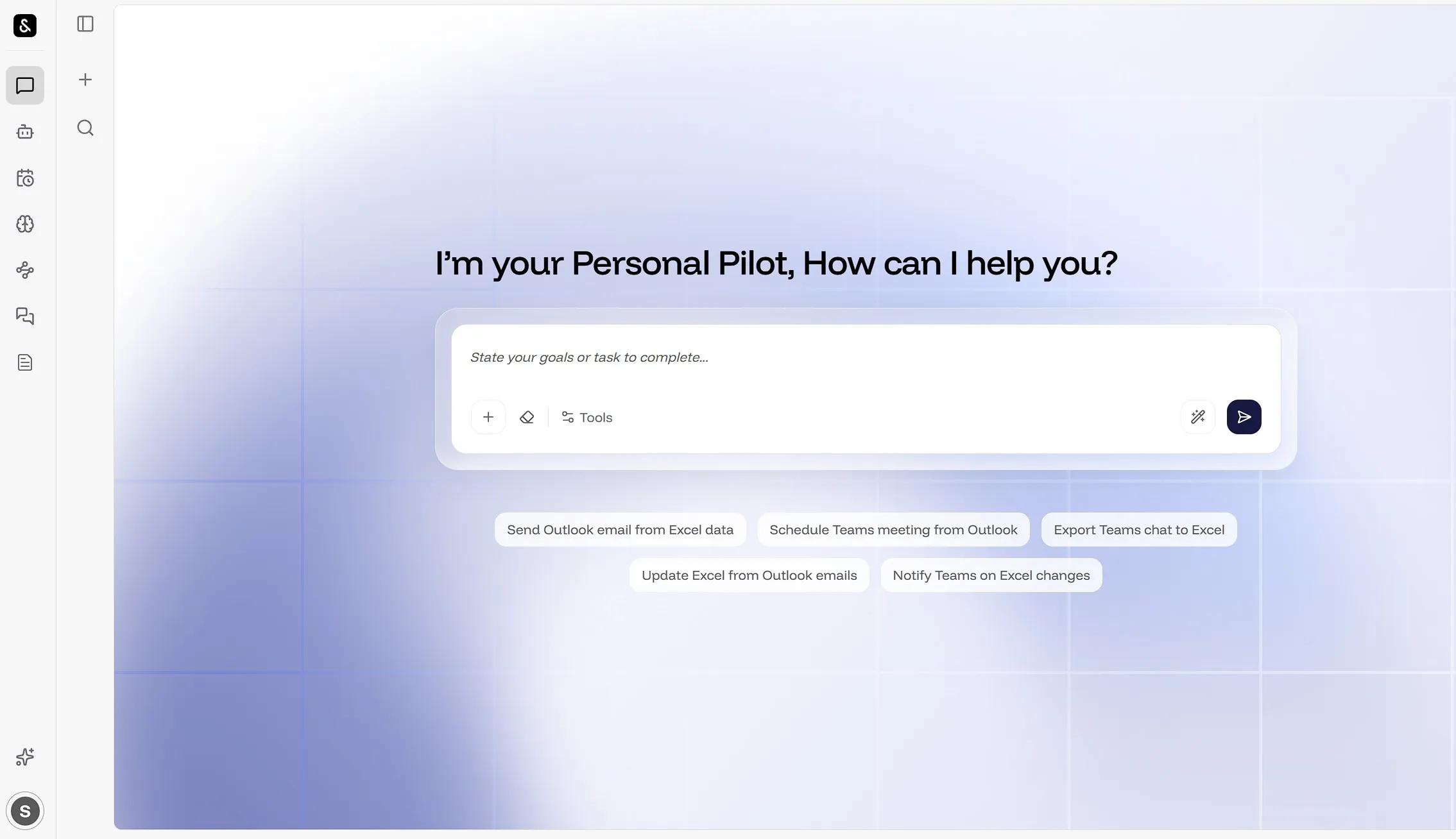
- In the dashboard, click on “Chat.”
- Use this prompt: "Create an agent to create a new task in Asana with the title 'Test Task - V3 Integration', description 'This task is created to verify Asana integration with V3 agent', and assign it to me with a due date of tomorrow." Then, hit Enter.
- Provide the necessary details as input and allow the AI Agent to run the workflow for you.
Best Practices
- Start with a simple automation before building complex multi-step workflows.
- Ensure the Asana authorizing user has sufficient workspace permissions.
- Monitor workflow logs and refine automation rules as needed.
Learn more and get support
To learn more about using the Supervity + Asana integration, visit Supervity.
If you have questions, feedback, or need support, visit the Supervity support page.
Asana does not endorse or certify apps built by third-party developers. If you encounter inappropriate content or behavior, please report it here. Otherwise, please contact the app developer for support.
Collaborate effortlessly with Asana
From the small stuff to the big picture, Asana organizes work so teams know what to do, why it matters, and how to get it done. It's free to get started, simple to use, and powerful enough to run your entire business. Learn more about Asana today.