


MuseAI + Asana
Manage Asana tasks and projects directly through MuseAI’s AI assistant.
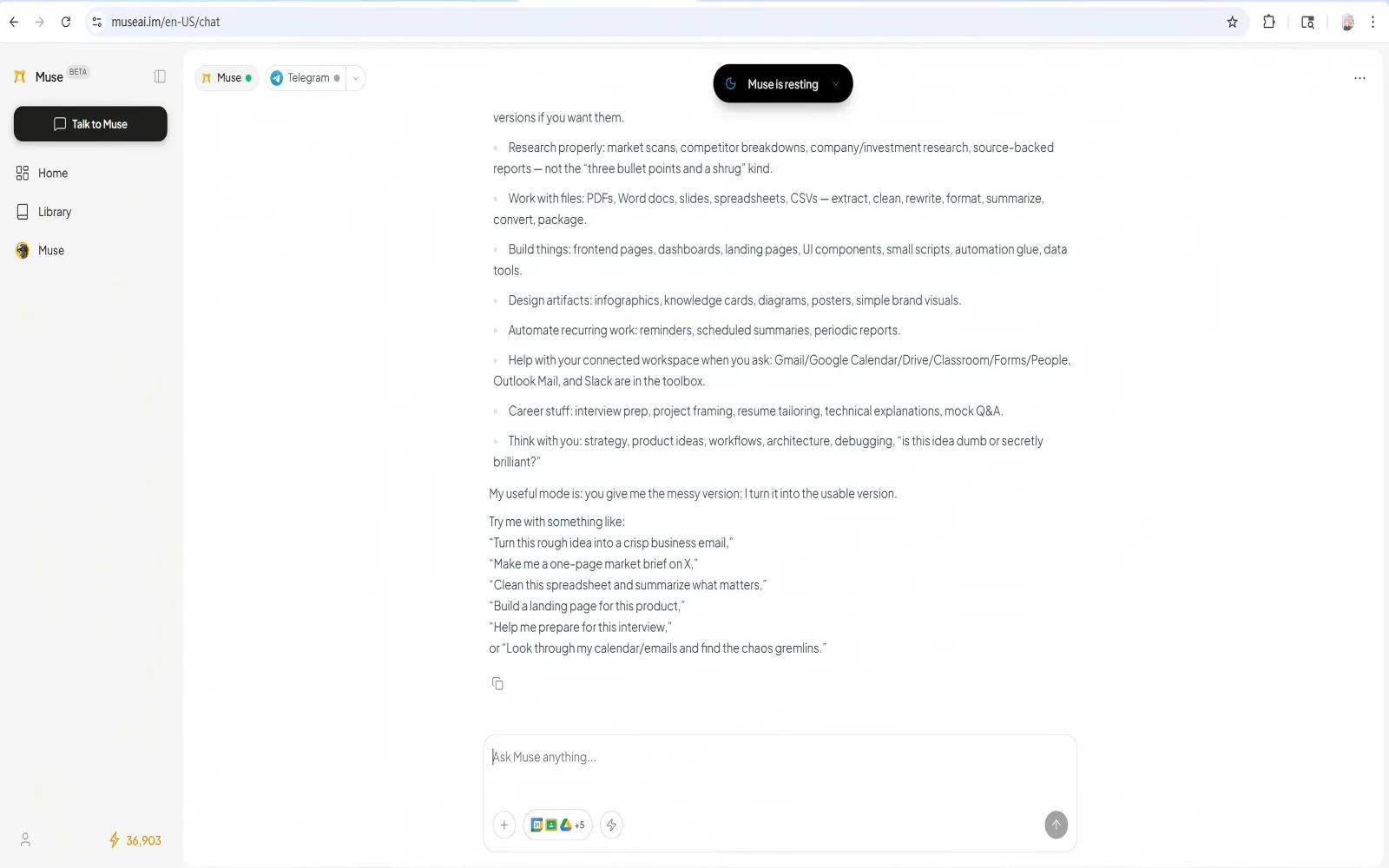
What is MuseAI?
MuseAI helps users work with Asana through a conversational AI assistant that can support common task and project management workflows.
With the MuseAI Asana integration, users can connect their Asana account and ask MuseAI to help them interact with their workspace. Supported workflows include creating tasks, viewing task details, finding tasks or projects, updating task information, and helping users stay organized across their Asana projects.
MuseAI reduces context switching by allowing users to manage Asana work items from within their AI assistant workflow.
The integration is intended for Asana users who want a faster way to capture work, retrieve project information, and keep tasks up to date using natural language.
How to connect MuseAI + Asana?
- Sign in to your MuseAI account.
- Make sure you have an active Asana account and access to the Asana workspace or organization you want to connect.
- In MuseAI, open the Permissions (Connectors) panel.
- Select Asana from the list of available connectors.
- Click Connect.
- You will be redirected to the Asana OAuth consent page to authorize the connection.
- After authorization, you will be redirected back to MuseAI. The Asana integration should now appear as connected.
- To verify the connection is working, ask MuseAI to perform a simple Asana action, such as:
- “Create a task in Asana titled ‘Test MuseAI integration’ with a due date of tomorrow.”
- Open Asana and confirm that the test task was created successfully in the expected workspace or project.
- You can then ask MuseAI to retrieve, update, or summarize Asana tasks as needed. For example:
- “Find my recent Asana tasks.”
- “Update the test task notes.”
- “Mark the test task as complete.”
Learn more and get support
To learn more about using the MuseAI + Asana integration, visit MuseAI.
If you have questions, feedback, or need support, contact the MuseAI support team.
Asana does not endorse or certify apps built by third-party developers. If you encounter inappropriate content or behavior, please report it here. Otherwise, please contact the app developer for support.
Collaborate effortlessly with Asana
From the small stuff to the big picture, Asana organizes work so teams know what to do, why it matters, and how to get it done. It's free to get started, simple to use, and powerful enough to run your entire business. Learn more about Asana today.