


MakeWebBetter Connect + Asana
MakeWebBetter Connect helps automate Asana workflows with AI agents, smart triggers, and human-in-loop control.
What is MakeWebBetter Connect?
MakeWebBetter Connect is a no-code integration and automation platform that helps automate Asana workflows with AI agents, smart triggers, and human-in-loop control.
MakeWebBetter Connect's top features are as follows:
- Agentic AI workflows: Automation that thinks and adapts
- MCP-powered execution: AI that can perform real actions
- Todos: Human approvals inside workflows
- Tables: Built-in workflow data storage
- No-code workflows: Build automation without developers
- 400+ App Connectors and Growing: Connect Asana with a wide range of business applications using prebuilt integrations.
How to connect MakeWebBetter Connect + Asana?
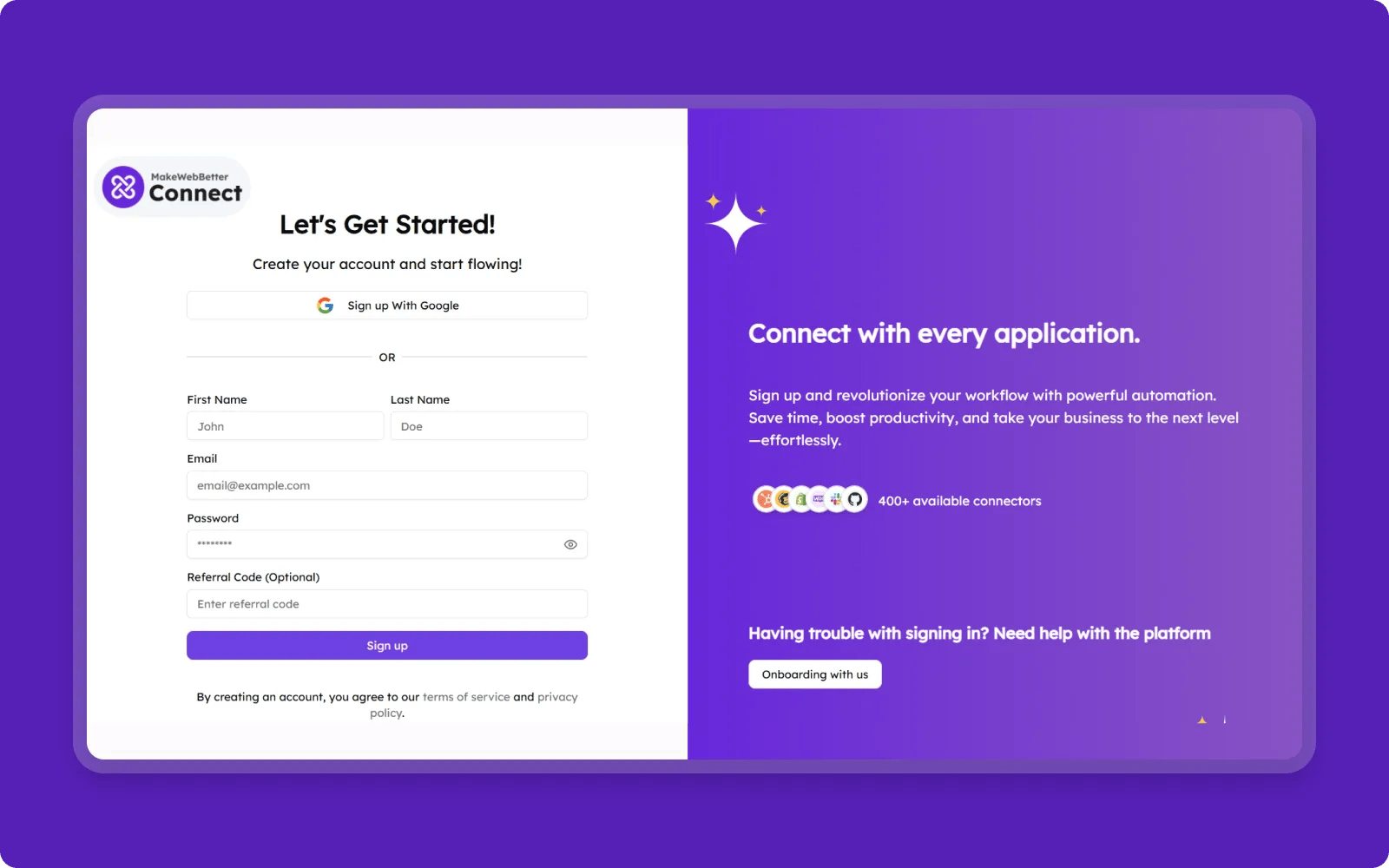
Step 1: Create Your Account
- Open the Platform: https://connect.makewebbetter.com/sign-in
- Choose a SignUp Option:
- Continue with Google, or
- Sign Up Using Email
- Enter Your Details:
- First name, last name, and password
- Click Sign Up
- Verify your email via the link sent to your inbox
Step 2: Create a New Connection (OAuth 2.0)
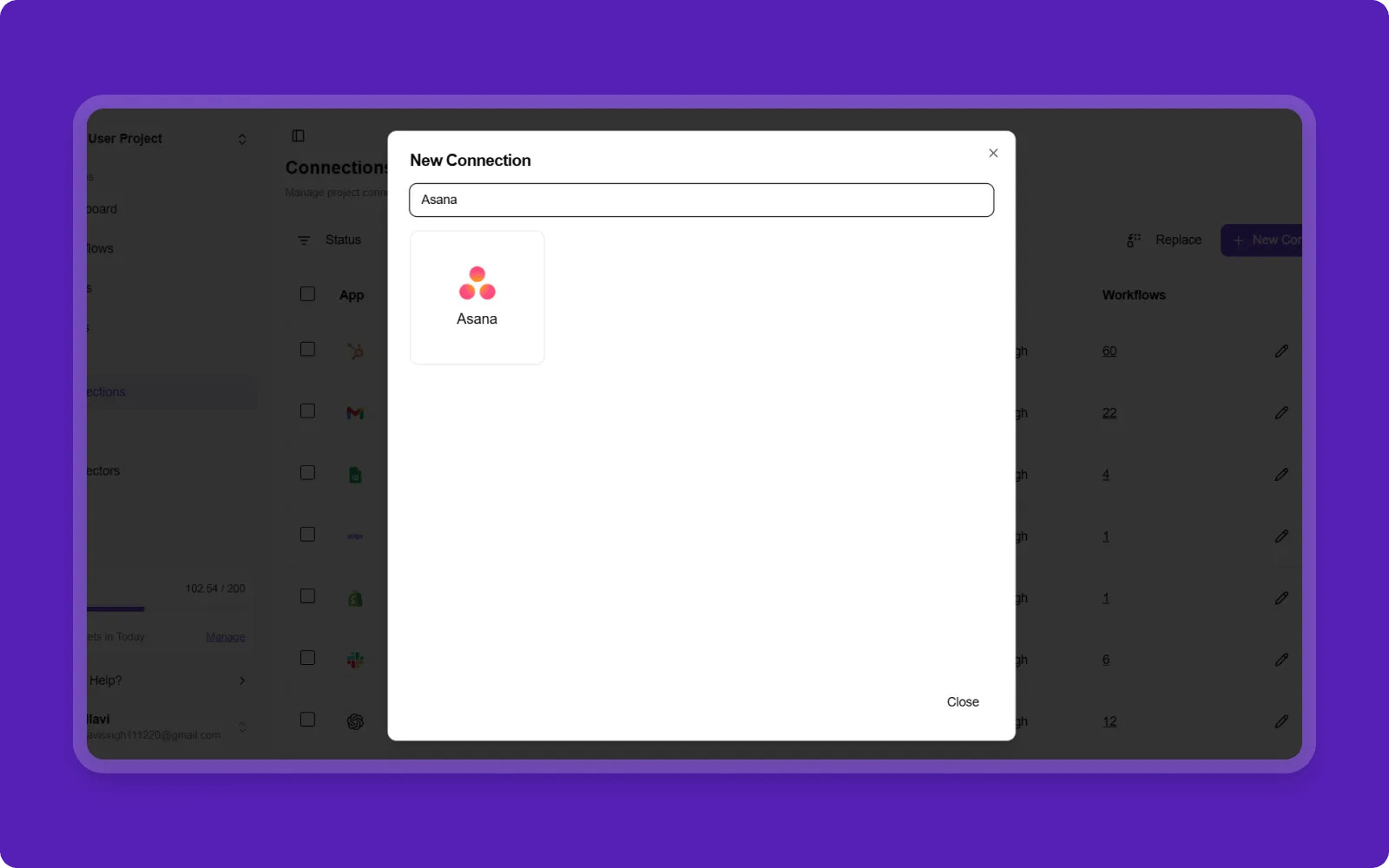
- After login, go to Connections from the Main Menu.
- Click on + New Connection
- Select Asana from the list of Apps
- From the connection popup, click Connect. You will be redirected to the Asana OAuth authorization screen.
- Choose your Asana account.
- Click Allow / Approve to grant permissions.
Now, your Asana account will be successfully connected.
Step 3: Create your first Workflow
- Navigate to the Workflows section
- Create a new workflow from scratch or available templates.
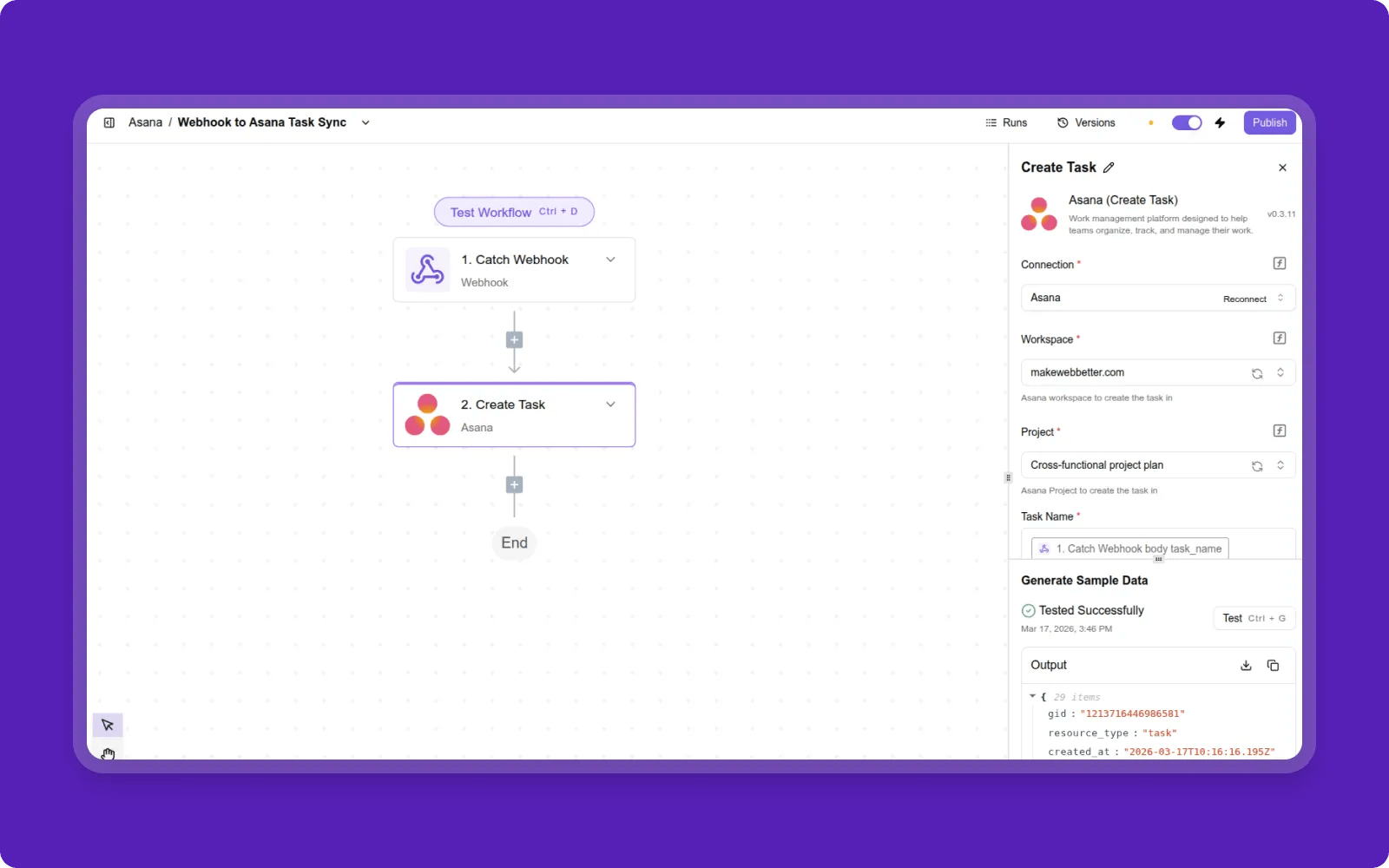
- In the workflow builder, first select a Trigger you want for task creation in Asana. For example, you can select Trigger: Native Webhook.
- Now, from Action, select Create a task in Asana.
Step 4: Test the Webhook Trigger
- Copy the Webhook URL from the trigger step.
- Send a sample JSON payload to this URL using Postman, curl, or any API tool
Step 5: Verify Execution
- Go to the Runs tab in MakeWebBetter Connect.
- Confirm that the workflow execution shows Success.
- Log in to your Asana test account.
- Verify that a new task has been created with the correct Task Name and Task Description.
Step 6: Data Mapping and Dynamic Field Discovery
- Edit the Create Task (Asana) action inside the flow.
- Observe that ‘The app dynamically fetches fields from your Asana account’ and ‘Both standard and custom fields are available for mapping’.
- Map webhook data to any required fields as needed.
Step 7: Disconnect & Revoke Access
- Go to the Connections tab.
- Locate your connected Asana account.
- Click Disconnect / Remove. This will:
- Revoke OAuth access
- Stop all active automation flows linked to that connection
Learn more and get support
To learn more about using the MakeWebBetter Connect + Asana integration, visit MakeWebBetter Connect.
If you have questions, feedback, or need support, visit the MakeWebBetter Connect support page.
Asana does not endorse or certify apps built by third-party developers. If you encounter inappropriate content or behavior, please report it here. Otherwise, please contact the app developer for support.
Collaborate effortlessly with Asana
From the small stuff to the big picture, Asana organizes work so teams know what to do, why it matters, and how to get it done. It's free to get started, simple to use, and powerful enough to run your entire business. Learn more about Asana today.