


Connectify + Asana
Automate Asana tasks, subtasks and projects from events in 100+ connected apps.



What is Connectify?
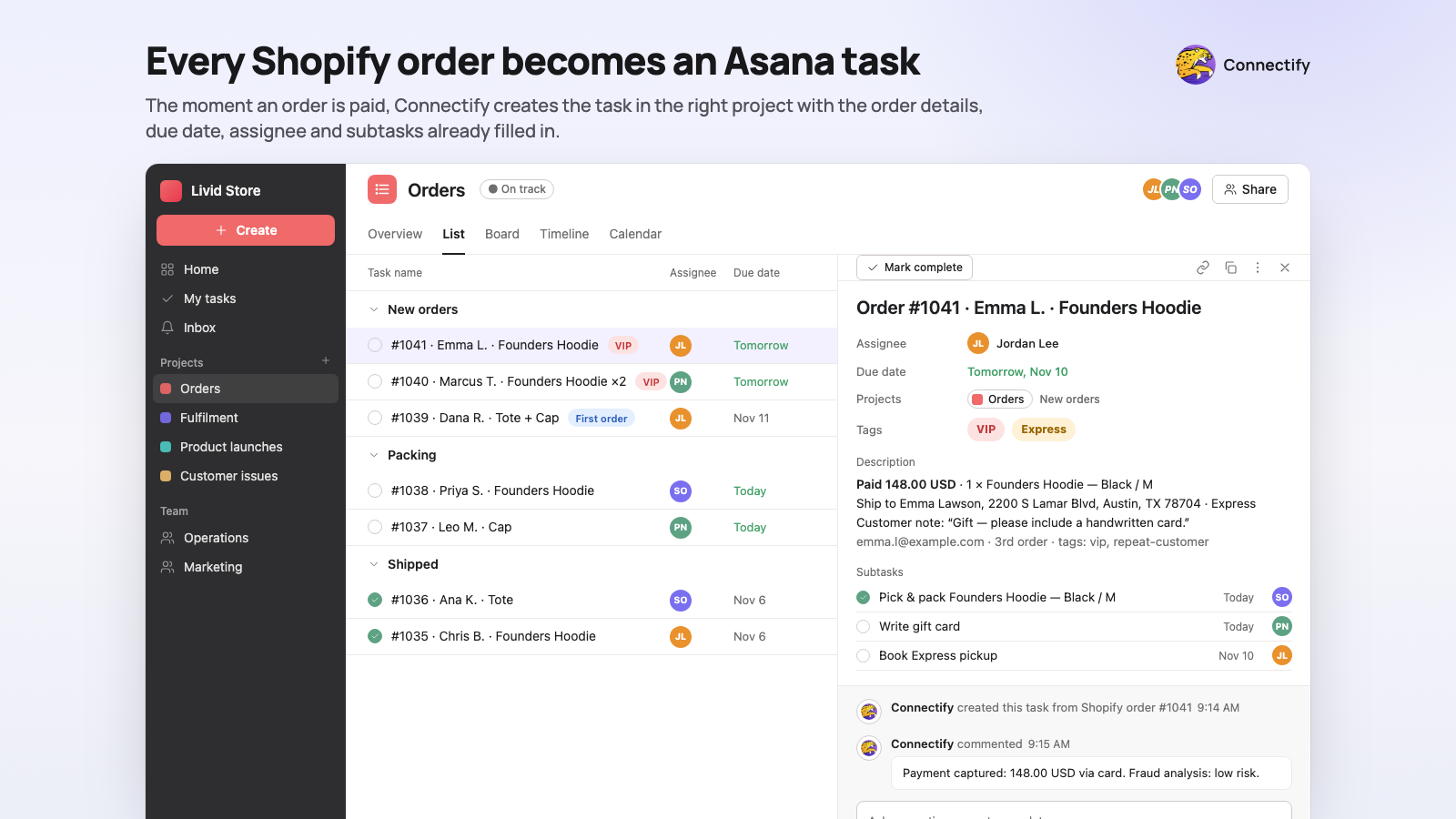
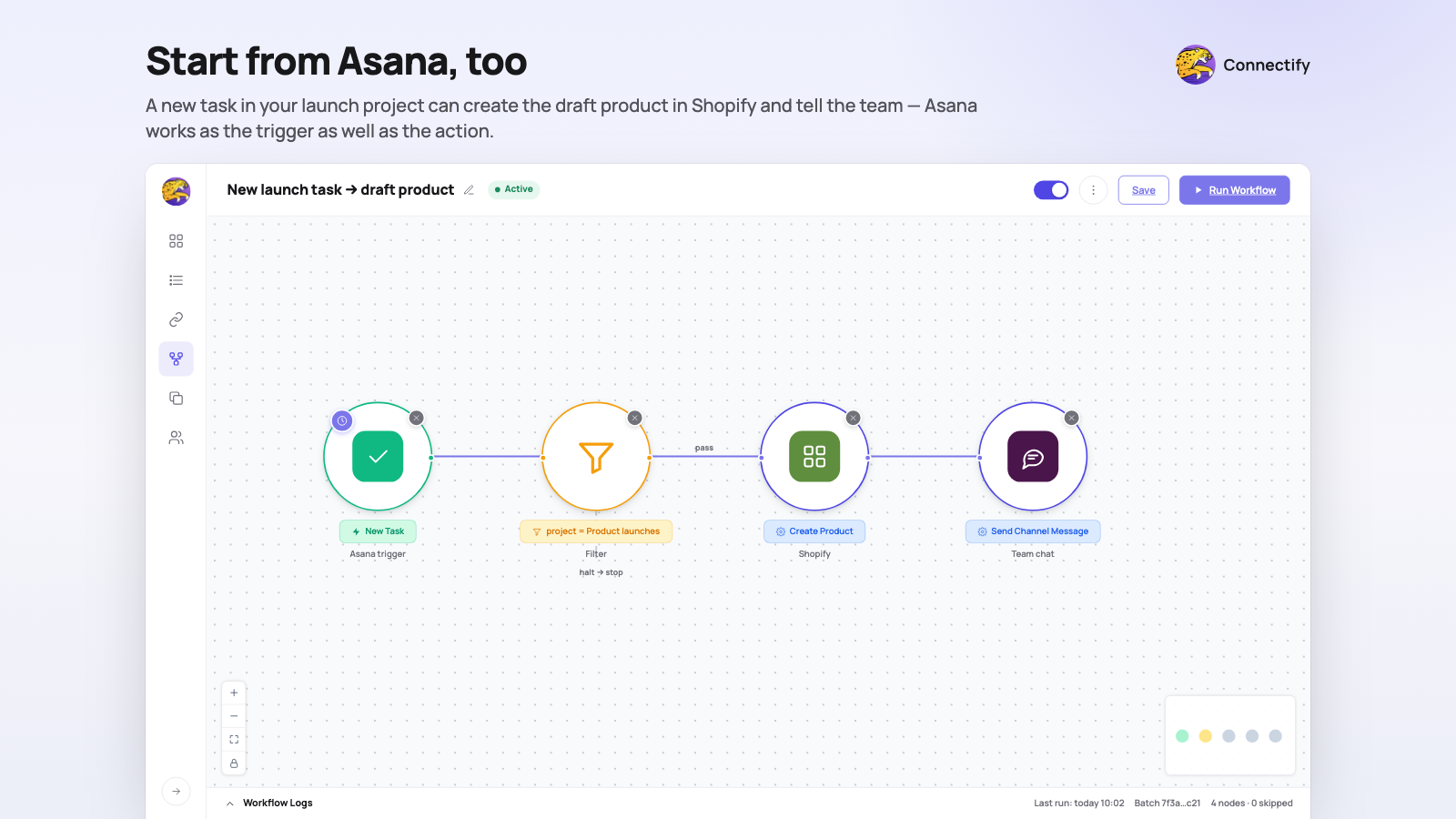
Connectify is a no-code automation platform that links Asana with 100+ apps. Create Asana tasks from events in your other tools, add subtasks, comments and projects as work moves along, update tasks when records change elsewhere, and use new Asana tasks to kick off workflows in Slack, HubSpot, Google Sheets, e-commerce platforms and more. Filters, loops and AI steps let you shape exactly which events become tasks.
How to connect Connectify + Asana?
Follow these steps to connect Connectify and Asana:
Prerequisites:
A Connectify account.
An Asana account with access to at least one workspace and project.
Connect Asana:
Sign in at app.connectify.co.
In the left sidebar click Connector Accounts, then click the Asana card.
On the Channel Account page click Connect a new account. An Asana authorization window opens; sign in to Asana and click Allow.
The window closes and your Asana account appears under Your Connected Accounts.
Build a workflow:
Click the + button at the top of the sidebar and choose Workflow (or open Workflows and create a new one). The workflow builder opens.
In the NODES panel, use Search connectors... and click the app that should start the workflow, for example Shopify or Asana. The first node added is always the trigger. Pick the event, for example Shopify Order created or Asana New Task (choose the workspace and project to watch).
Click Asana in the NODES panel again to add an action node. In its settings choose your account under Select Account, pick an event under Events such as Add Task, then choose the workspace, project and assignee and map trigger fields (order number, customer name) into the task name and notes using the @ variable picker.
Give the workflow a title, click Save, and switch the toggle in the header to Active.
Fire the trigger (for example place a test order). A task appears in the chosen Asana project within seconds; each run is listed under Logs.
Learn more and get support
To learn more about using the Connectify + Asana integration, visit Connectify.
If you have questions, feedback, or need support, visit the Connectify support page.
Asana does not endorse or certify apps built by third-party developers. If you encounter inappropriate content or behavior, please report it here. Otherwise, please contact the app developer for support.
Collaborate effortlessly with Asana
From the small stuff to the big picture, Asana organizes work so teams know what to do, why it matters, and how to get it done. It's free to get started, simple to use, and powerful enough to run your entire business. Learn more about Asana today.