


ActaNote + Asana
Notes to action. Minus the manual.
What is ActaNote?
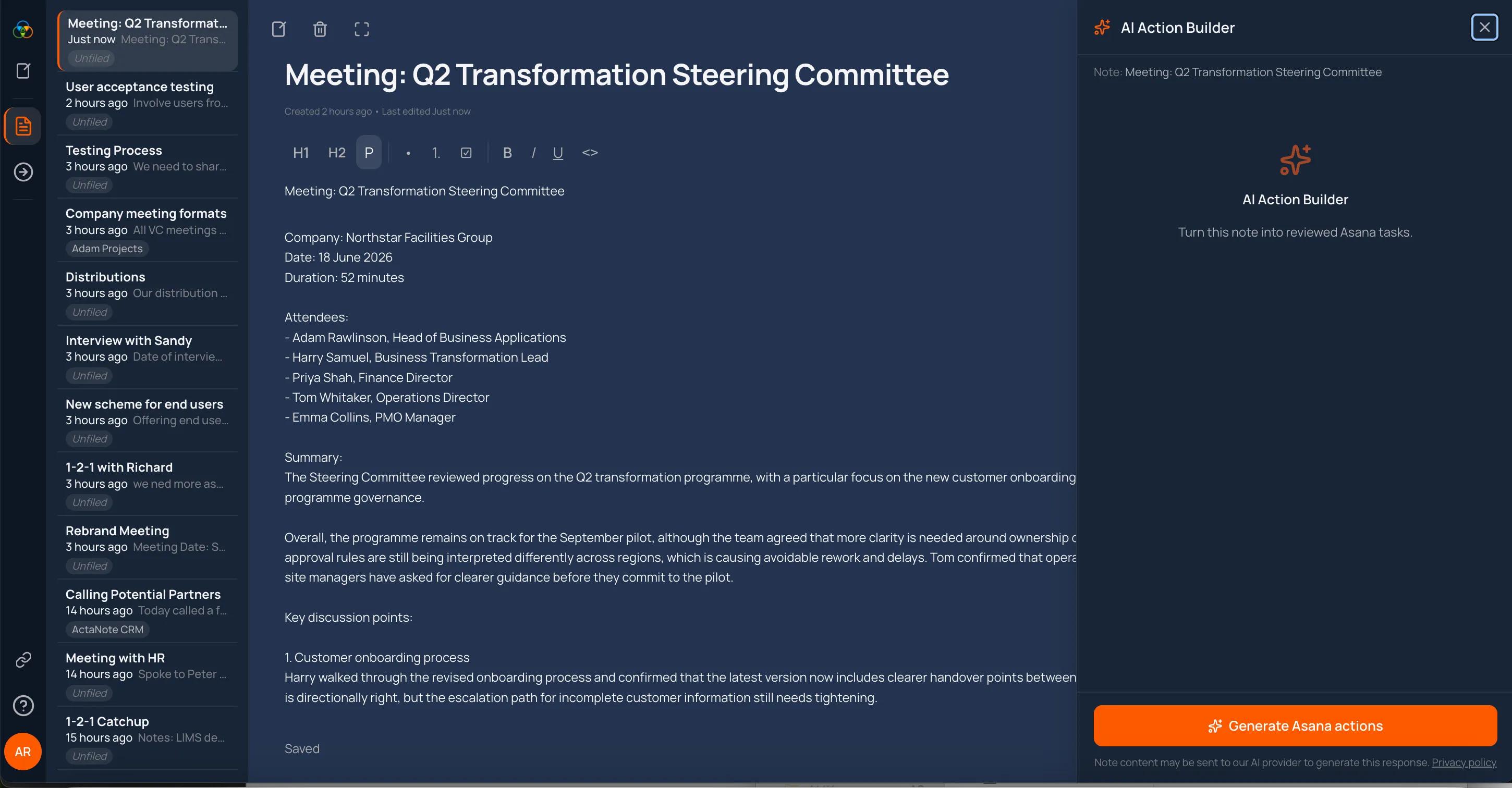
Most meeting decisions never make it into Asana. Not because teams forget — because the gap between discussing something and actually creating a task is just wide enough that it doesn't happen.
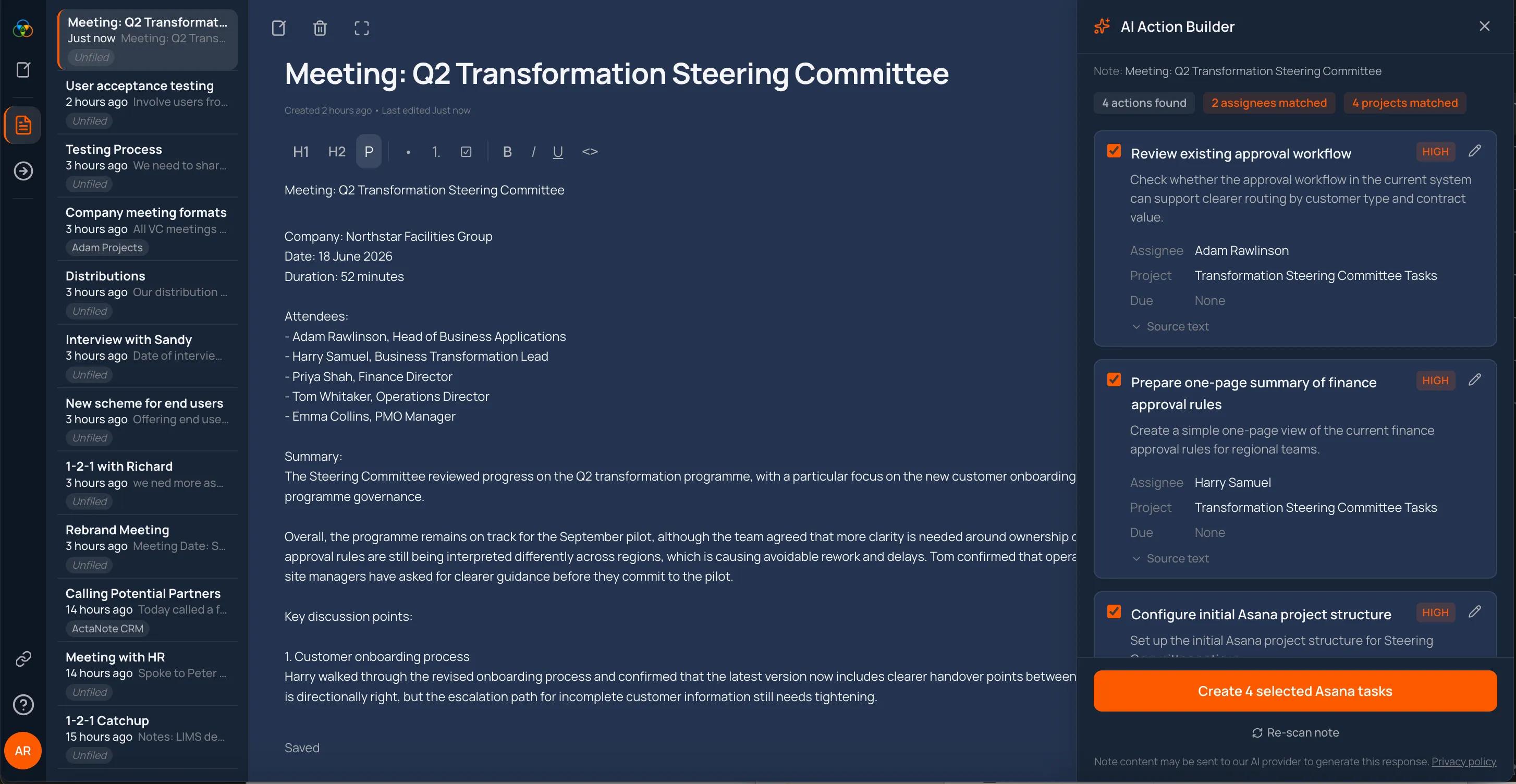
ActaNote closes that gap. Paste notes from Gemini, Teams, Zoom, or your own write-up — Acta AI finds the actions, decisions, owners, and due dates already living in the discussion. Not just the headline summary. The things buried three paragraphs in that everyone agreed to but nobody tracked.
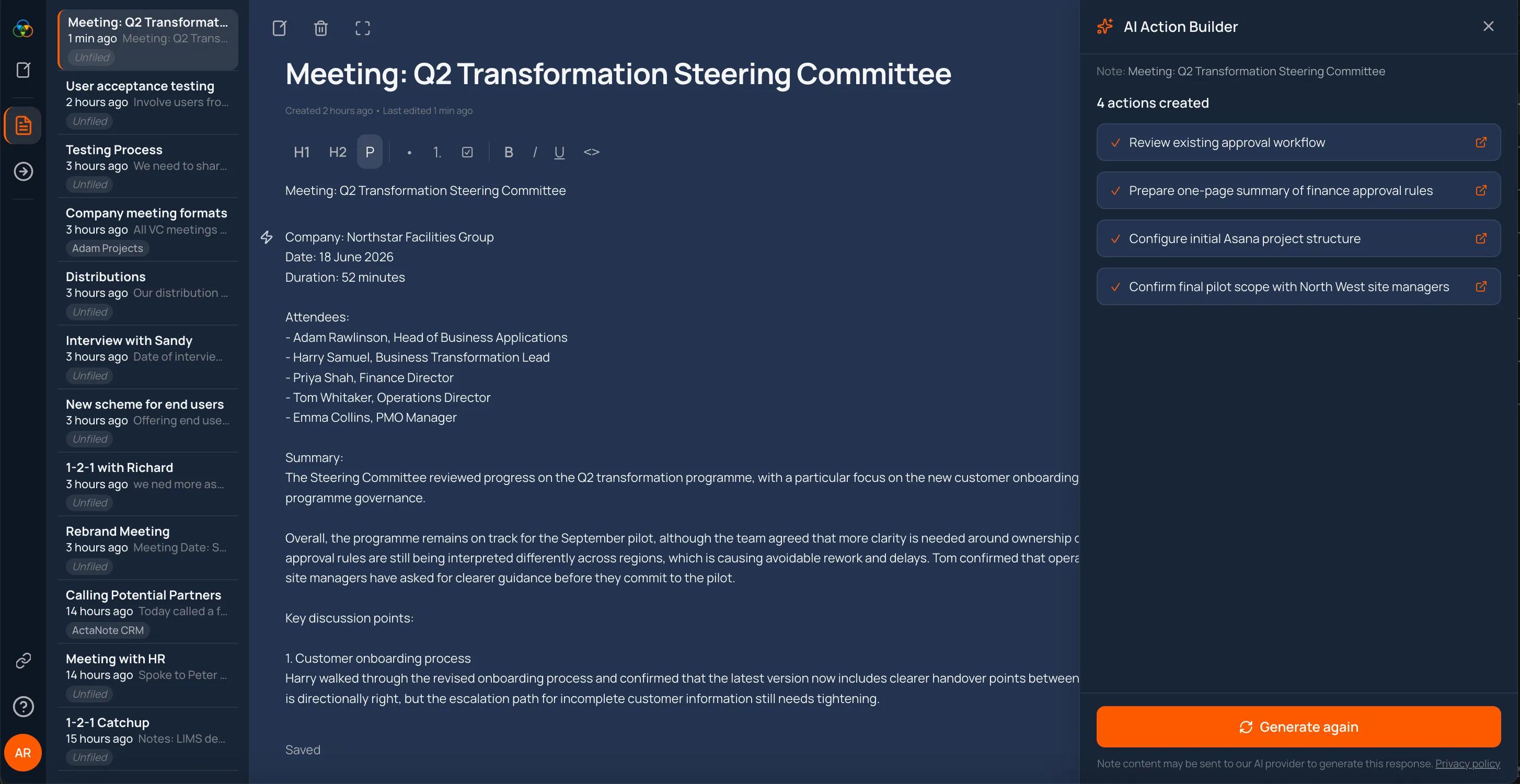
Before anything touches Asana, you review it. Confirm the assignee, project, and due date. One click to sync. Nothing gets created without your sign-off.
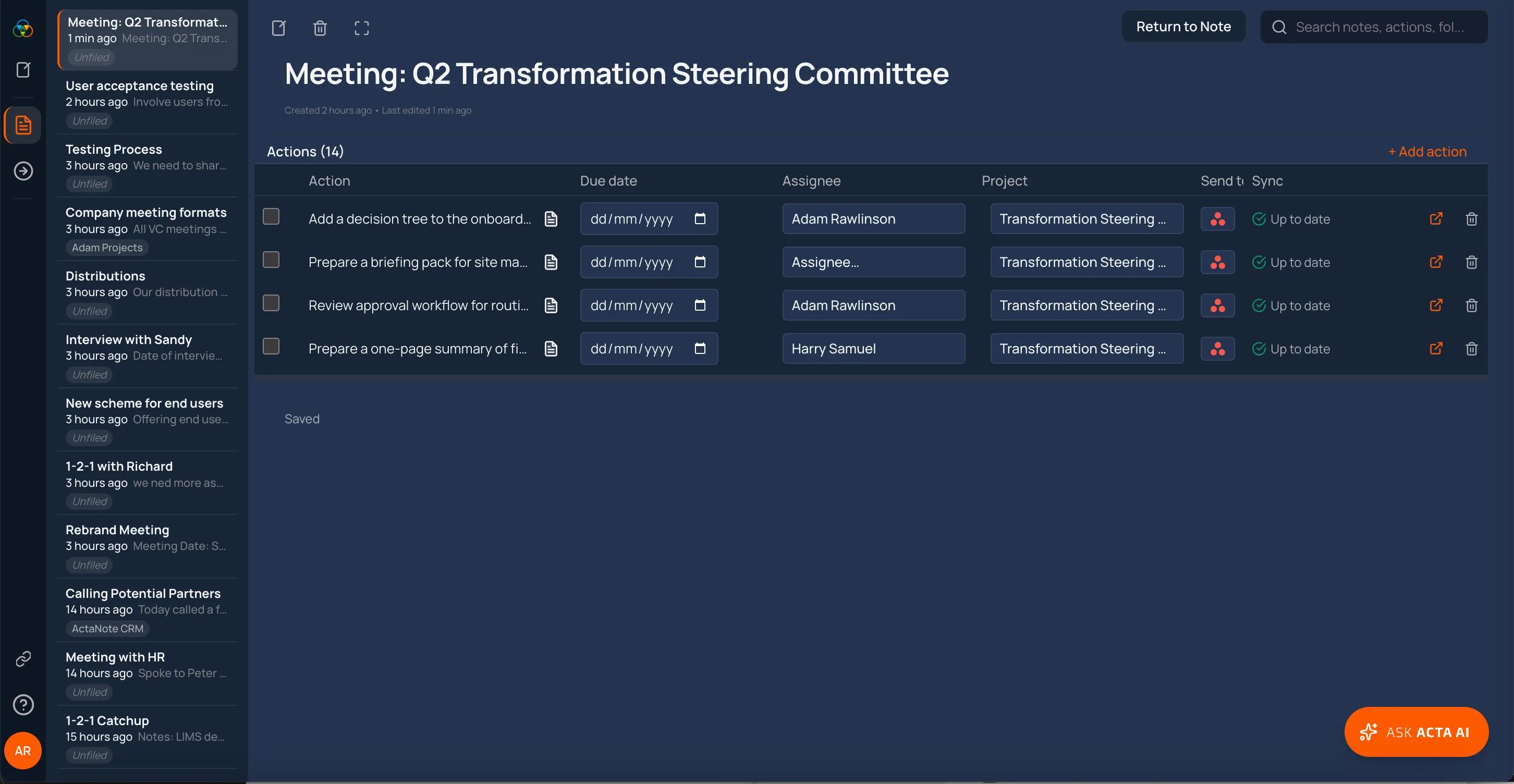
The result: work that was discussed actually gets done — assigned to the right person, in the right project, with the context usually lost between the meeting and the task.
Your notes stay yours. Asana gets the work.
How to connect ActaNote + Asana?
Before you start: Make sure you're signed in to both ActaNote and the Asana account you want to connect.
Step 1 — Open Integrations
In the left sidebar, click Integrations (the link icon). An Integrations panel will slide open alongside your notes.
Step 2 — Connect your Asana account
You'll see an Asana card. Click Connect. ActaNote will redirect you to Asana to authorise access.
Step 3 — Authorise on Asana
Asana will ask you to confirm you're allowing ActaNote to access your workspace. Click Allow. You'll be taken straight back to ActaNote.
Step 4 — Confirm the connection
Back in ActaNote, the Asana card will update to show Connected in green. Your Asana projects and workspace members are now loaded in the background — this is what ActaNote uses to suggest the right project and assignee when you extract actions.
Step 5 — You're ready to sync
Open any note, run Acta AI to extract actions, review the suggestions, and click Sync to Asana. Tasks will be created in your Asana workspace.
Keeping your workspace up to date
If you add new projects or team members in Asana, click Refresh Cache in the Integrations panel to pull in the latest data. ActaNote doesn't automatically pick up changes to your workspace in real time.
To disconnect
Click Disconnect in the Integrations panel (or go to Settings > Integrations > Asana). Your existing Asana tasks won't be affected. You'll be given the option to unlink any actions in your notes that were previously synced — this is recommended to keep things tidy.
Learn more and get support
To learn more about using the ActaNote + Asana integration, visit ActaNote.
If you have questions, feedback, or need support, visit the ActaNote support page.
Asana does not endorse or certify apps built by third-party developers. If you encounter inappropriate content or behavior, please report it here. Otherwise, please contact the app developer for support.
Collaborate effortlessly with Asana
From the small stuff to the big picture, Asana organizes work so teams know what to do, why it matters, and how to get it done. It's free to get started, simple to use, and powerful enough to run your entire business. Learn more about Asana today.