New for Admins: Stronger password and security controls
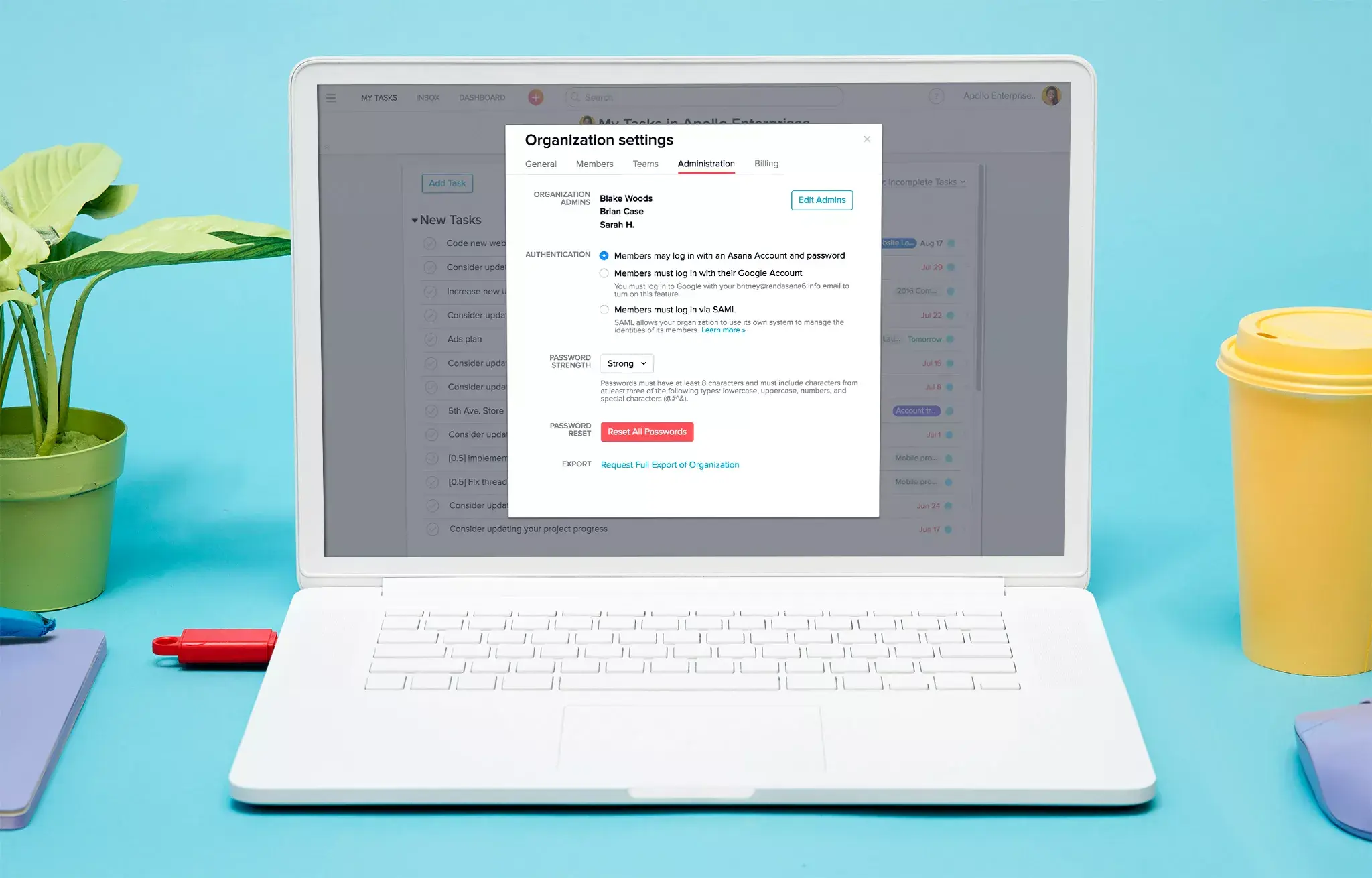
We’re excited to announce new features created to help Admins better manage their company’s Asana accounts. Starting today, Organization Administrators have the ability to enforce stronger password requirements for members and can force a company-wide password reset to ensure security.
With new password strength controls, you can set your organization’s password standards as “simple,” which requires that passwords are at least 6 characters long, or “strong,” which requires passwords to have at least 8 characters, and must include characters from at least 3 of the following types: lowercase, uppercase, numbers, and symbols (!@#&). This new feature also gives you more options in how teammates sign on. You can choose from SSO or SAML, or can have teammates create a password specifically for Asana that meets your strength requirements.
OK | Not OK |
Unicorns123! (LUNS) | unicorns123 (LN) |
unicorns123! (LNS) | UNICORNSabc (LU) |
UNICORNS123! (UNS) | unicorns!!! (LS) |
Unicorns123 (ULN) | UNICORNS123 (UN) |
Unicorns!!! (ULS) | UNICORNS!!! (US) |
123123123!!! (NS) |
Forcing a company-wide password reset is not a feature that we expect Admins to use too often, but things happen, and it’s important to have a way to keep your information secure in case passwords are compromised. This feature lets you reset your entire company’s passwords with one click (don’t worry, we’ll always confirm before initiating a reset). Once you push reset, each of your teammates will get an email from Asana asking them to click on a unique login link and reset their password.
When to use password strength requirements and reset
When you enable stronger passwords, Asana will force existing users to have a strong password when they decide to change their password. If you’d like to ensure that everyone in your organization has strong passwords, you’ll want to reset all passwords once you’ve switched to strong password requirements. Once security requirements are put in place, each new teammate and guest that is added to Asana must create a password that meets your security requirements, ensuring that login info company-wide is secure.
When it comes to password reset, you’ll likely use this feature only when absolutely necessary. For example, if someone on your team accidentally discloses their login info for Asana externally, or if a team member’s account is compromised, you may reset your entire company’s passwords as a precautionary measure. As they say, better safe than sorry, especially when it comes to your company data.
How to use password controls
As with all admin functionality, these new features are only available to organization admins in Premium accounts.
Clicking on your profile picture in the top right corner of Asana, and choose [Your domain name] Settings.
Click on the Administration tab to set password strength requirements or do a password reset.
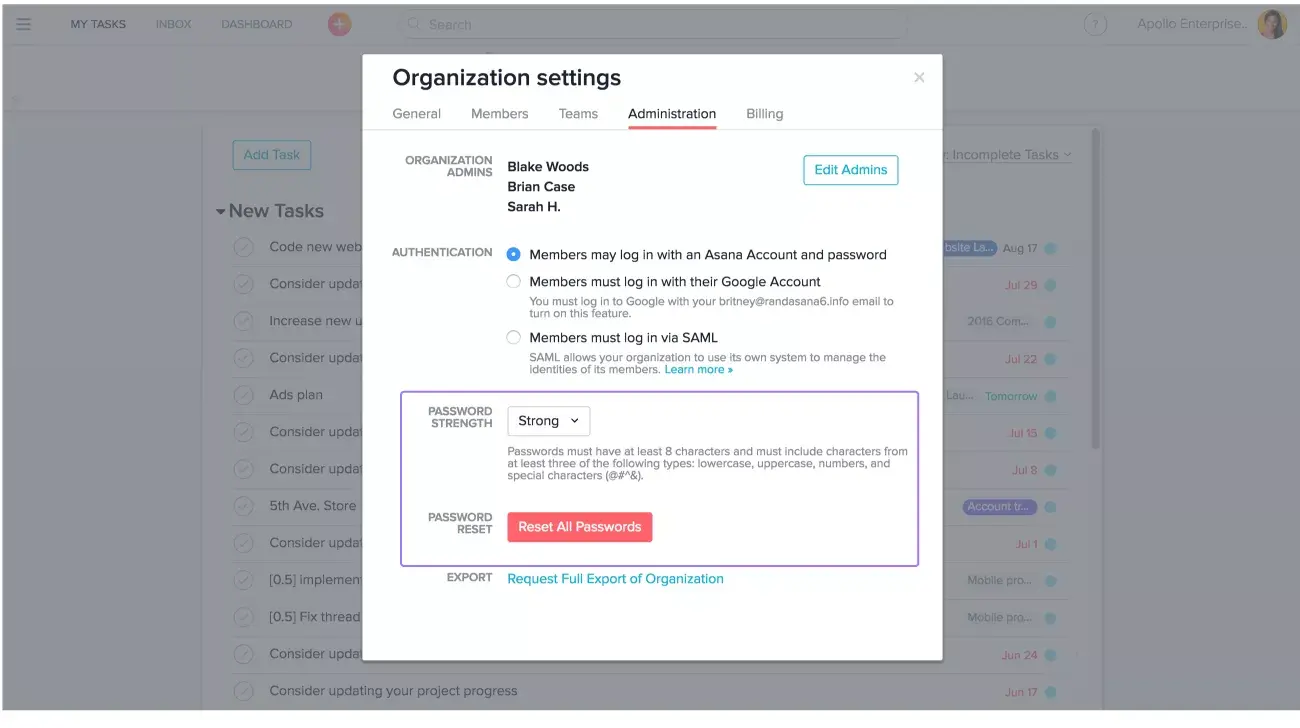
Simply click the toggle option by “Password strength” to change strength settings and hit “Save” to implement changes across your organization. The red “Reset all passwords” button will first ask you if you’re sure, and once you confirm, will initiate an organization-wide password reset, including the admin’s passwords.
This feature is a part of Asana’s focus on Admin specific features to help teams like yours better manage and store their data in Asana. Let us know what you think in the comments below!
![[Pemasaran Versi Musim Semi 2026] Gambar Hero](https://assets.asana.biz/transform/365f4526-36ae-48a9-b24e-d5835d7b1d9a/FY26-Spring-Blog-image-1578-x-1052?io=transform:fill,width:2560&format=webp)