Hit your deadlines with shared team calendar software
View your team's work in one online calendar—so you can hit your deadlines every time.
With a shared team calendar app, you can...
Share one calendar your whole team can update
Give teammates one shared calendar for deadlines, milestones, launches and events.
Assign owners and due dates so everyone knows who handles each task.
Update tasks, comments and dates in Asana as plans change.
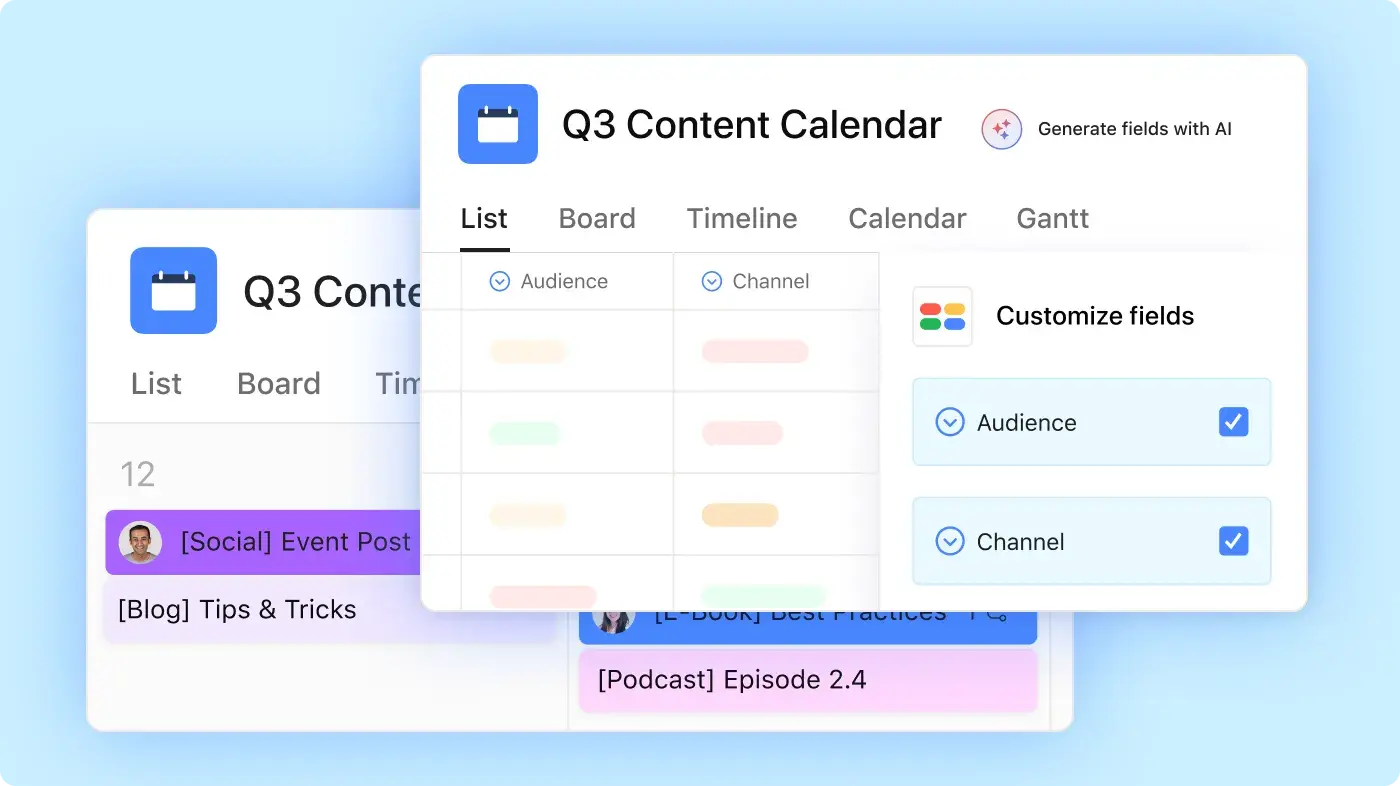
See what your team's working on
Search for tasks, deadlines, owners and project details.
Review team tasks by due date, assignee, project or custom field.
Spot upcoming deadlines before they affect handoffs or launch dates.
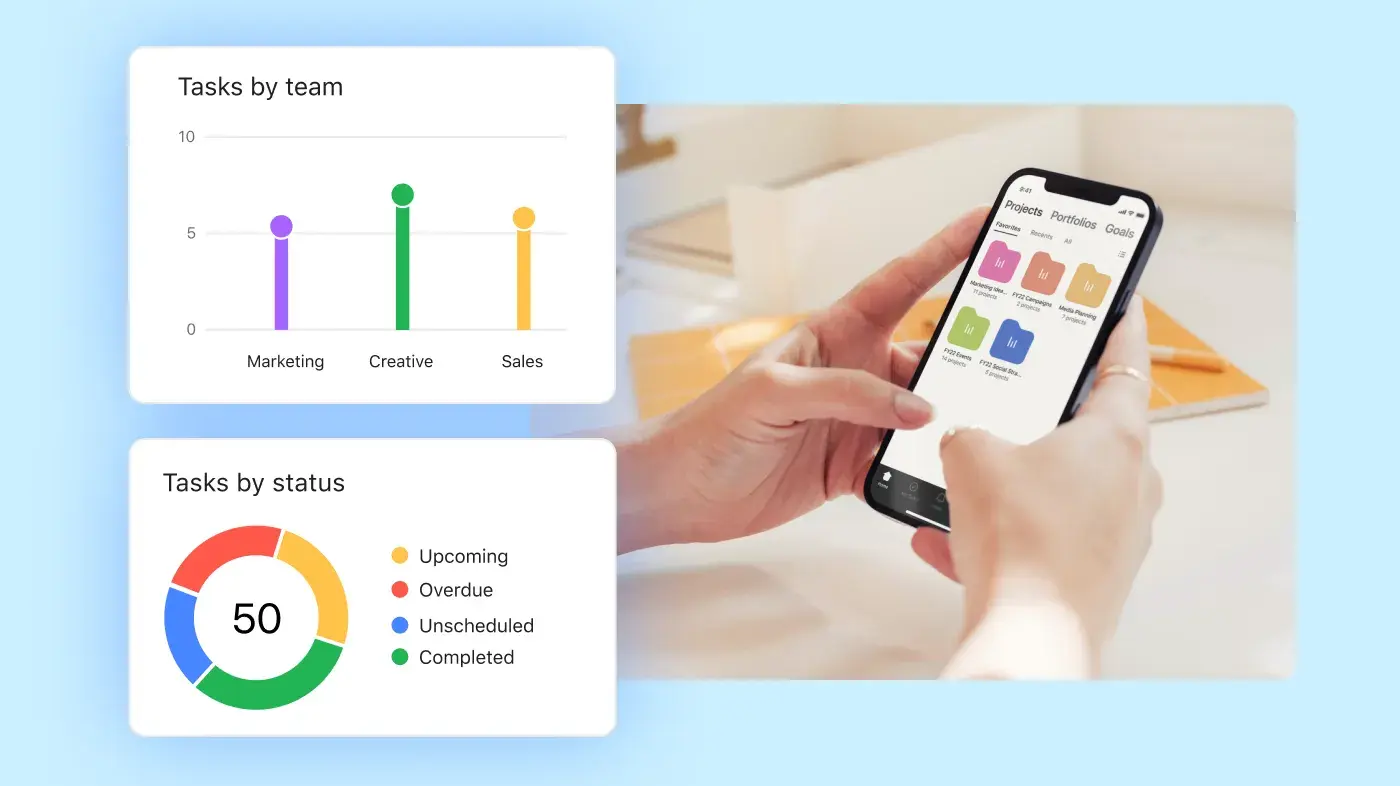
Sync Asana with other scheduling tools
Connect Asana tasks to the calendar app your team already uses.
Review project deadlines alongside meetings and appointments.
Open the synced calendar items to return to the original Asana task.
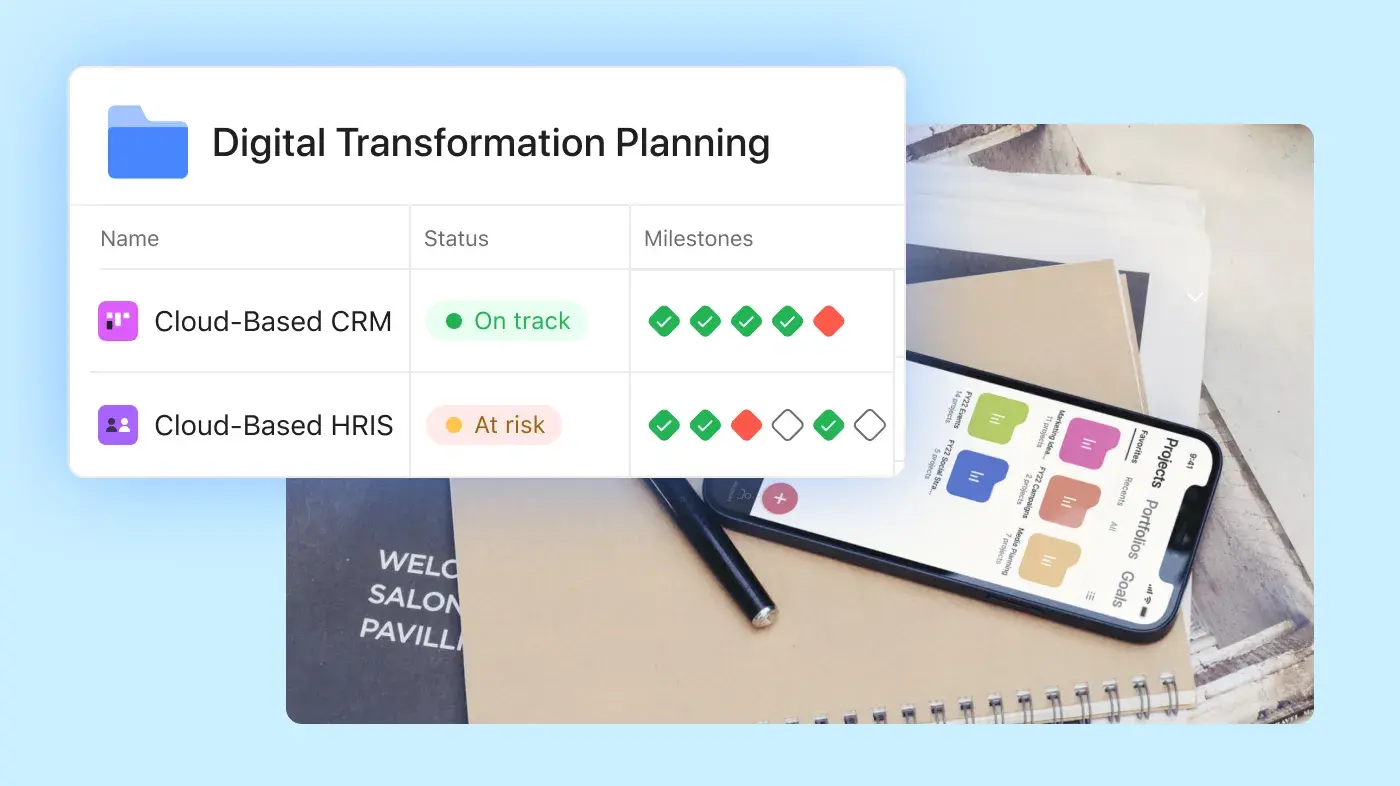
Project Views
Visualise your work with a shared team calendar
Asana makes it easy to plan work the way you want. Choose the view that fits your needs and easily switch from one view to another to see project details in a whole new way.
See what your team is working on and track progress against project deadlines.
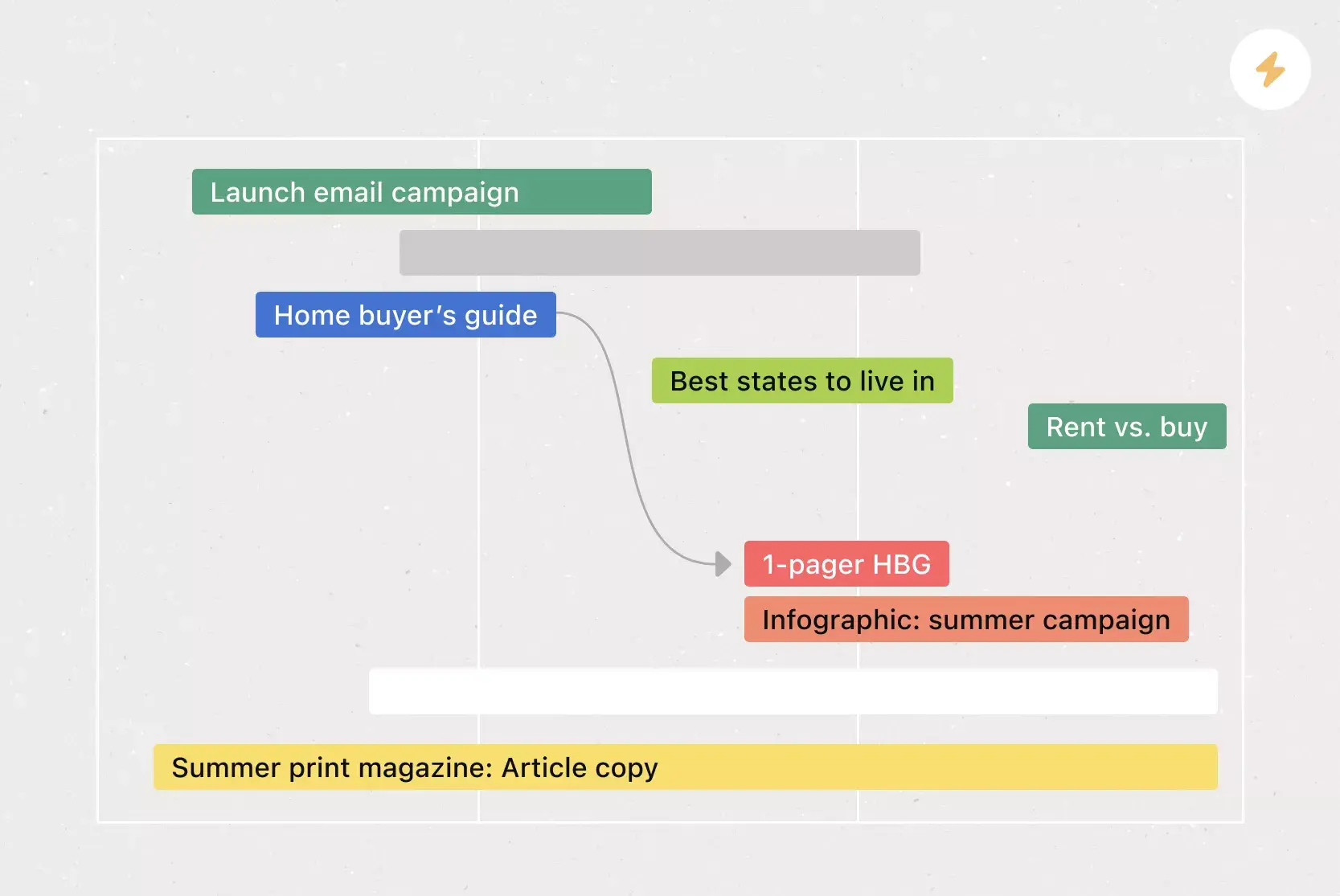
Map out project plans so you can see a timeline of tasks and keep work on track.
Organise work on a Kanban board and streamline task management at every stage.
Capture every step of project work and manage each step from start to finish.
Teams that want results trust Asana











Manage more than meetings with a shared team calendar app
Use Asana to plan the work behind every deadline. Create shared calendars for campaigns, launches, content plans, events and project milestones.
Still have questions. We've got answers
To create a shared team calendar in Asana, start by opening a free Asana account and creating a project for the work you need to plan. Asana's Personal plan includes calendar view, unlimited tasks and unlimited projects for up to two users. Asana's free team calendar app is ideal for individuals, partners or very small teams that need a shared calendar for deadlines and project work.
A simple free team calendar setup looks like this:
Create a new project in Asana.
Add tasks for the work your team needs to complete.
Assign owners, so teammates know who handles each task.
Add due dates so tasks appear in Calendar View.
Use the monthly view to review upcoming deadlines.
Add descriptions, files, comments and approvals.
Teams can use an Asana team calendar to plan campaigns, create content calendars, track events and project milestones. Since each calendar item connects back to a task, Asana works well for both task and time management, not just event creation.
Yes, each Asana project can have its own Calendar View, so teams can create multiple calendars for different projects, departments or workflows. For example, a marketing team might use one work calendar for campaign deadlines, another for an editorial schedule and another for product launch milestones.
A shared calendar app works well when different teams need different owners, dates and project details. A content calendar might track publish dates and reviews, while an event calendar might track vendor deadlines, recurring events and day-of tasks.
Teams can also switch views based on the type of planning they need:
Use Calendar View to review deadlines by date.
Use List View to manage a detailed to-do list.
Use Timeline to review schedules and dependencies.
Use Board View to group work by status, such as requested, in progress, in review and done.
Yes, you can sync Asana with Google Calendar, Microsoft Outlook, Apple Calendar and other calendar tools that support subscriptions by URL. The ability to sync shared work calendars helps teammates review project deadlines in the calendar app they already use for meetings, appointments and notifications.
This is especially useful for teams that use Google Workspace, Gmail or Microsoft 365 as part of their daily routine. For example, a consultant with a Google account might use booking pages so clients can schedule meetings, then use Asana to manage follow-up tasks and deadlines.
A few notes about syncing shared calendars:
Asana tasks with due dates can appear in a connected calendar.
Each synced calendar item links back to the original Asana task.
Teammates can open the task to review owners, comments, files and project details.
Asana remains the place to update the work behind each deadline.
Yes, Asana tasks can appear in your personal calendar app after you set up calendar sync. This helps you review project deadlines next to meetings, appointments, birthdays and personal reminders. For example, you can sync an Asana project or My Tasks with Google Calendar, Outlook or iCloud calendars that support calendar subscriptions. Some calendar setups use CalDAV, but Asana sync typically works through a calendar subscription link.
Syncing Asana with your calendar app makes it easier to plan your day without constantly switching tools. Your personal calendar shows the date, while Asana stores the task details, owner, comments, files and next steps your team needs to complete the work.
Yes, teams can use Asana on iPhone, iPad, Apple Watch and Android devices to review project work, create tasks, assign owners and update due dates from a phone or tablet. Asana's mobile app also lets users add task descriptions, attach files and manage work while away from a desktop.
Teams can use Asana on mobile to:
Add new tasks when work comes up.
Assign tasks to teammates.
Set or change due dates.
Review project details before a meeting.
Comment on tasks and answer follow-up questions.
Attach files or images from a mobile device.
The best free calendar app depends on what your team needs to manage. Some apps focus on meetings and personal schedules, while others help teams connect dates to tasks, owners and project details.
Here are a few common options:
Asana: Good for teams that need a shared calendar connected to task management, project owners, approvals, files and deadlines.
Google Calendar: Good for teams that use Google Workspace, Gmail and shared calendars for meetings, reminders and event scheduling.
Microsoft Outlook: Good for teams that use Microsoft 365 and Outlook Calendar for meetings, work schedules and team availability.
Apple Calendar: Good for Apple users who want a simple calendar app for events, reminders, birthdays and iCloud calendars.
Simple Calendar: Good for Android users who want a basic offline calendar with a monthly view.
Fantastical: Good for Apple users who want day views, widgets, calendar sets and a more detailed personal scheduling experience.
Morgen: Good for people who want to plan their day with calendars, tasks, booking pages and scheduling links.
Todoist: Good for people who want a to-do list app with task deadlines, recurring tasks and calendar-style planning.
For team projects, Asana works better when your shared calendar needs more than dates and events. In Asana, calendar items connect to tasks, owners, due dates, comments, files, approvals and project views. That helps teams manage the work behind each deadline, not just the date on the calendar.
Use a standard calendar app when you only need to schedule meetings, appointments or events. Use Asana when your team needs to plan deadlines, assign owners, track project tasks and manage work from request through completion.
Yes, Asana's AI calendar schedules tasks around deadlines, priorities, available time and your team's capacity. Asana AI can create time blocks, revise the plan when deadlines change and sync scheduled work with Google Calendar or Outlook.
Transform the way you work with Asana
Start your free trial
Try Asana for free. No credit card required.
Watch the demo
See how Asana connects companies at scale.
Speak with a sales rep
Learn how Asana helps teams collaborate seamlessly.